Export Evernote to PDF Files on Your Local Disk (Step-by-Step)
Archive your notes in a standard, universally readable format. Learn how to convert your Evernote notebooks into local PDF files with all formatting, layouts, and attachments preserved.
On this page
Export Evernote to PDF Files on Your Local Disk (Step-by-Step)
Your notes represent years of memories, research, design specs, and decisions. Keeping them solely in the cloud exposes you to changes in pricing and service terms. Converting them to local PDF files is one of the most reliable ways to archive your data for the long term.
PDF is a universal format that will display exactly the same way on any device, decades from now, without requiring any proprietary note-taking application.
In this guide, we'll show you how to convert your entire Evernote library to cleanly formatted, local PDF files on your computer automatically using NoteMigrator.
Why Export to PDF Locally?
1. Lifetime Data Readability
Unlike proprietary database formats or Markdown files (which can sometimes render slightly differently across various editors), a PDF file is frozen in its visual state. It looks identical on Windows, macOS, Linux, iOS, or Android.
2. Local Conversion and Controlled Exports
With NoteMigrator, the PDF conversion happens on your computer. Your notes, images, and attachments are processed locally for this export flow instead of being sent through a separate conversion service.
3. Portable Backups
You can copy a folder of PDFs to an external drive, burn them to a disc, upload them to your private cloud, or keep them on a backup server. Finding notes inside them is as simple as running a system-wide search.
What NoteMigrator Preserves in the PDF Export
Other export solutions often strip attachments or break page layouts. NoteMigrator retains key aspects of your notes:
Notebook Hierarchy: Notebooks are saved as matching subfolders on your computer.
Embedded Media: Inline images, audios, and files are kept intact.
Note Formatting: Clean conversion of tables, text styling, code blocks, lists, and headers.
Metadata: Creation and edit timestamps are preserved.
Step-by-Step Export Guide
Here is the step-by-step tutorial to convert your Evernote notes to PDF:
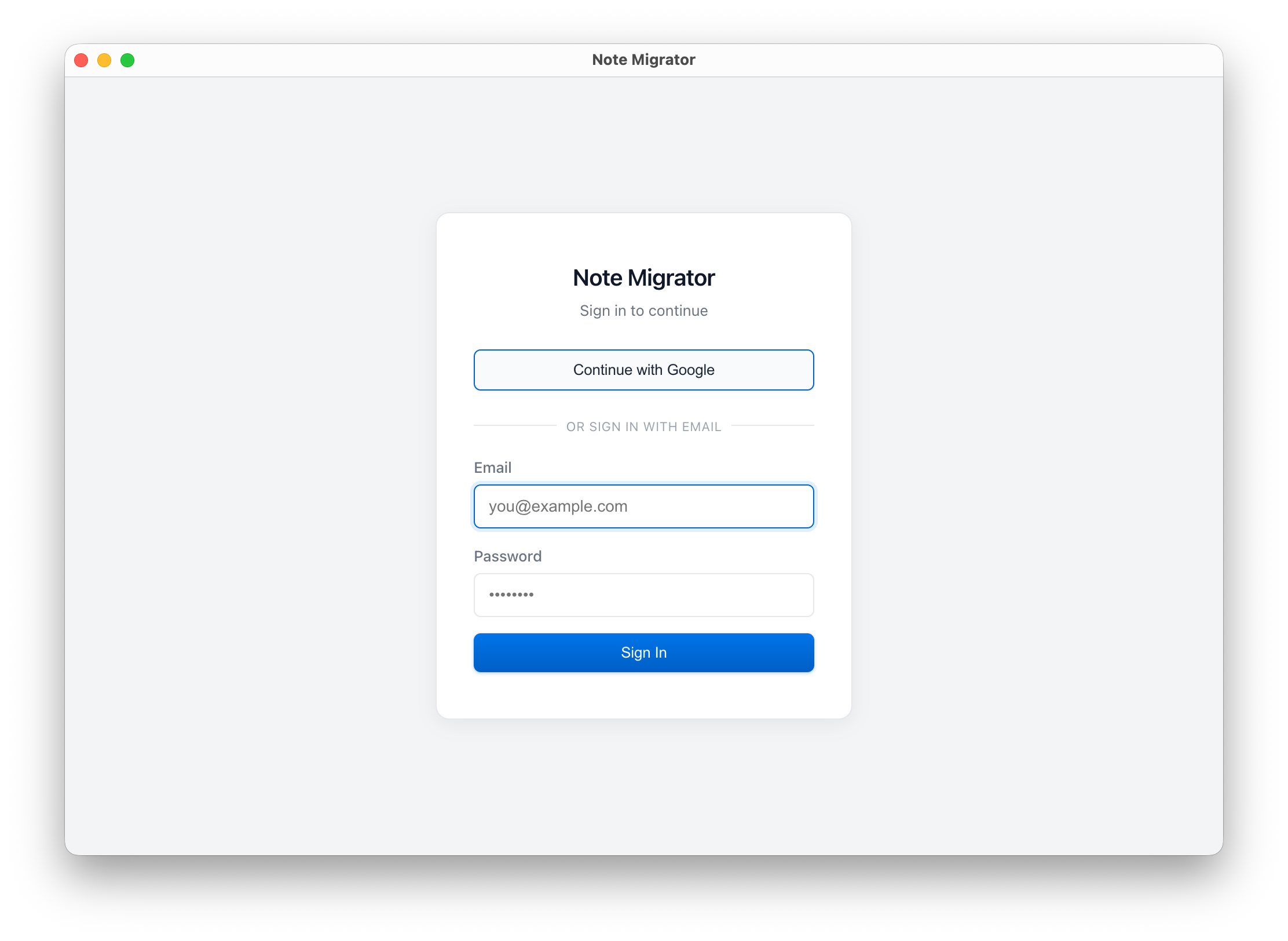
1. Log in to NoteMigrator
Open NoteMigrator and sign in to access the local migration dashboard.
Log in to NoteMigrator
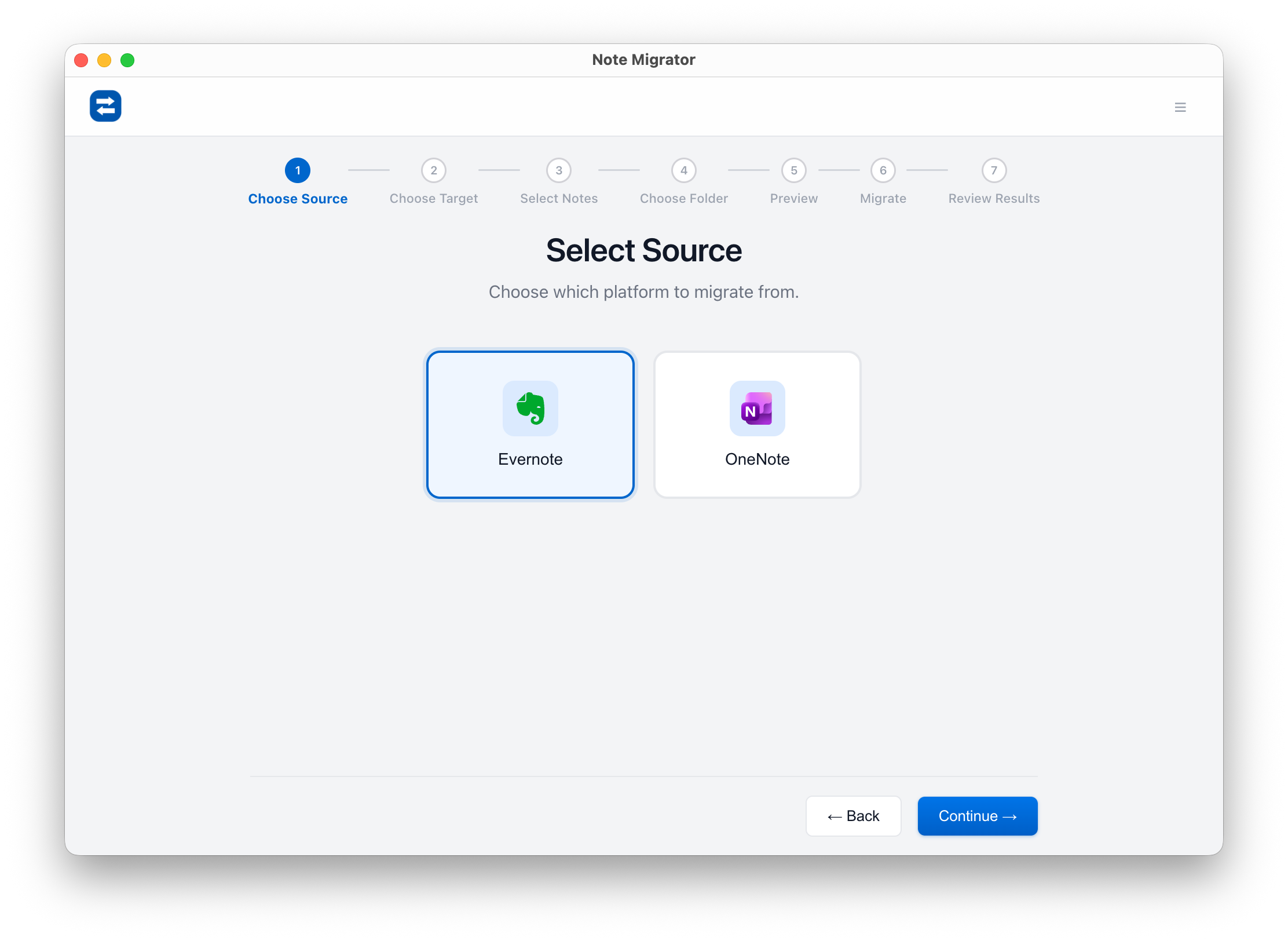
2. Select Evernote as Source
Choose Evernote as your source note application.
Select Evernote source
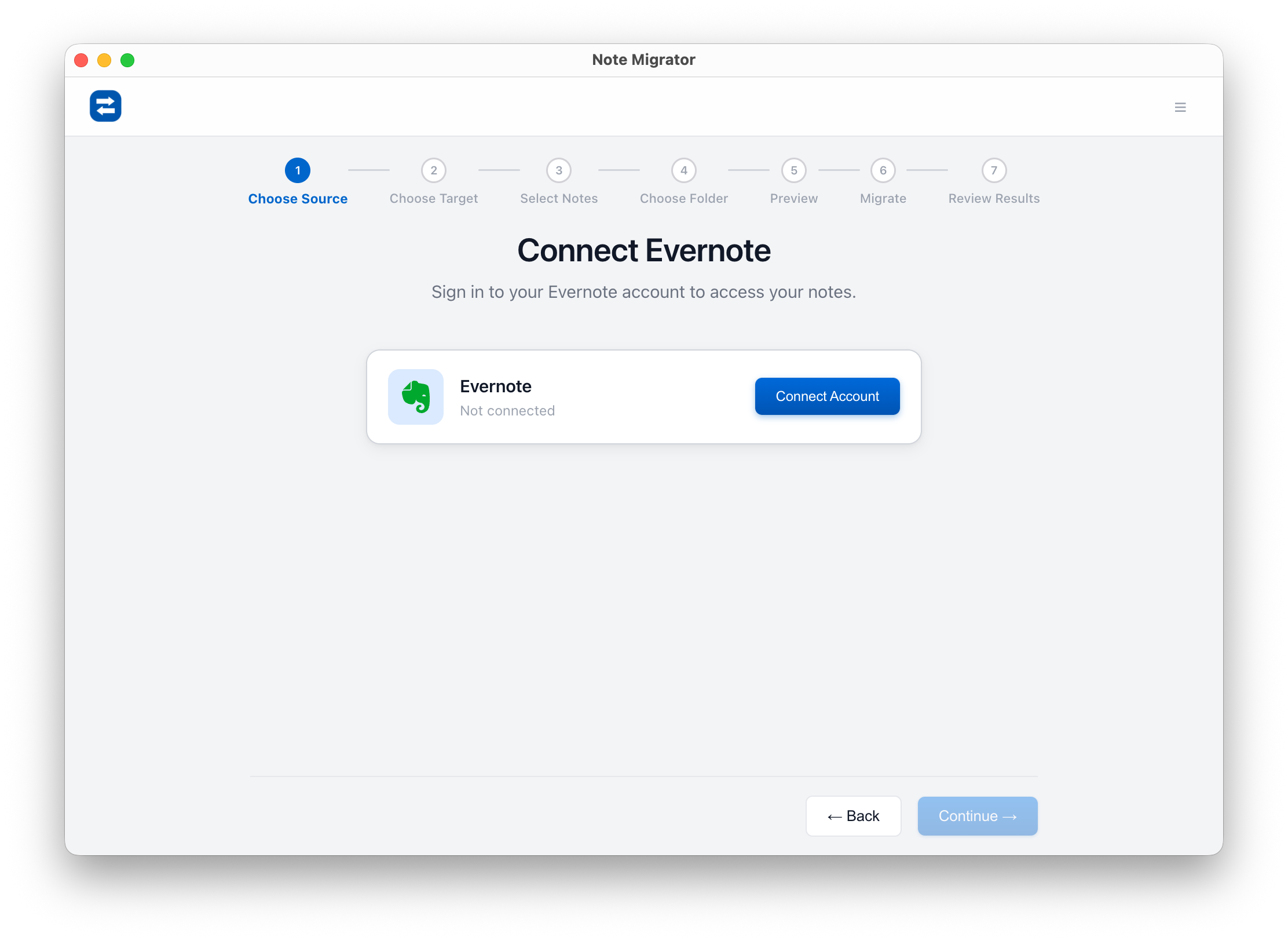
3. Connect Evernote Account
Authorize NoteMigrator to safely connect to your Evernote account.
Connect Evernote Account
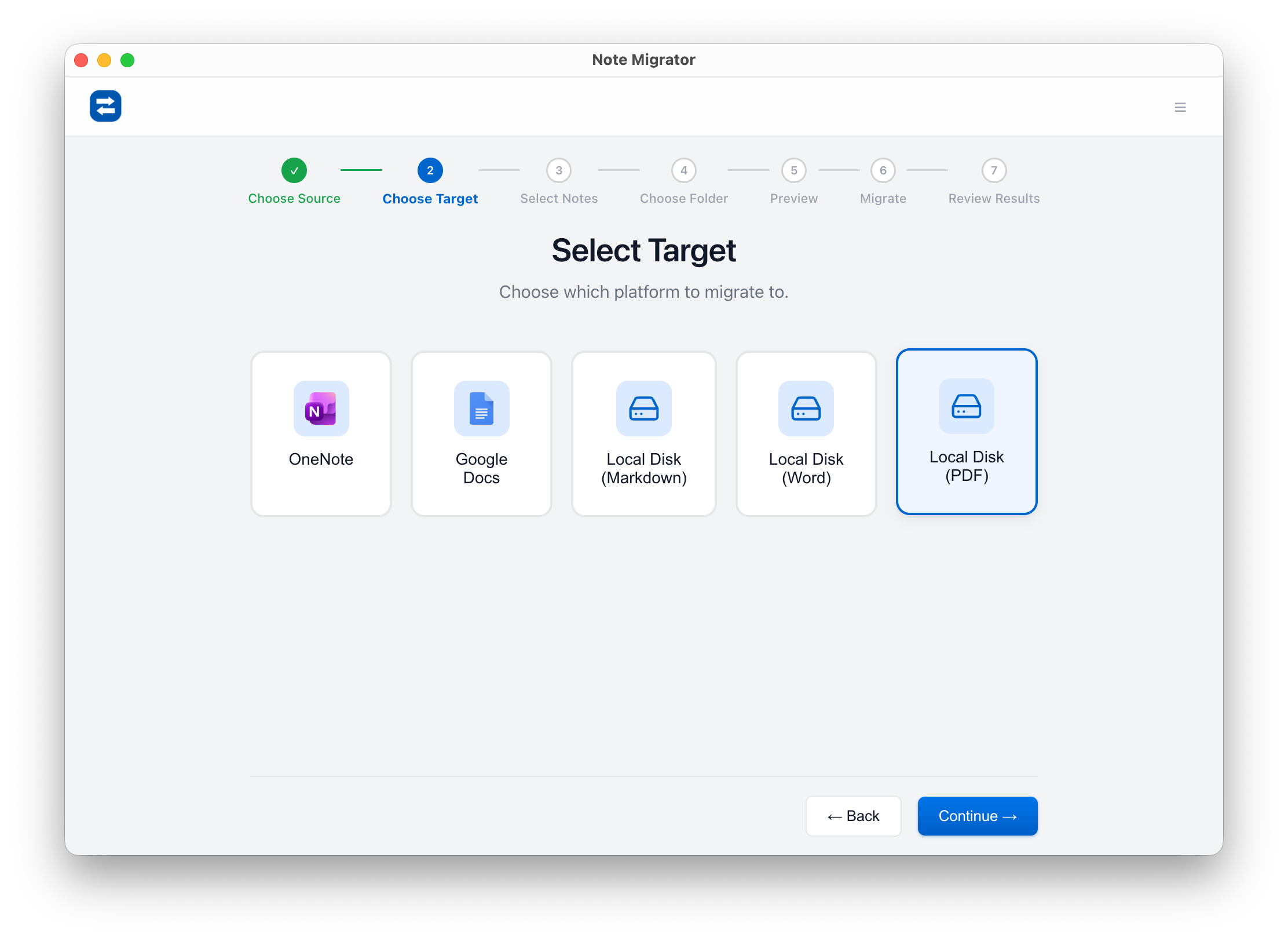
4. Choose Local PDF as Target
Select "Local PDF" as the destination option.
Select Local PDF target
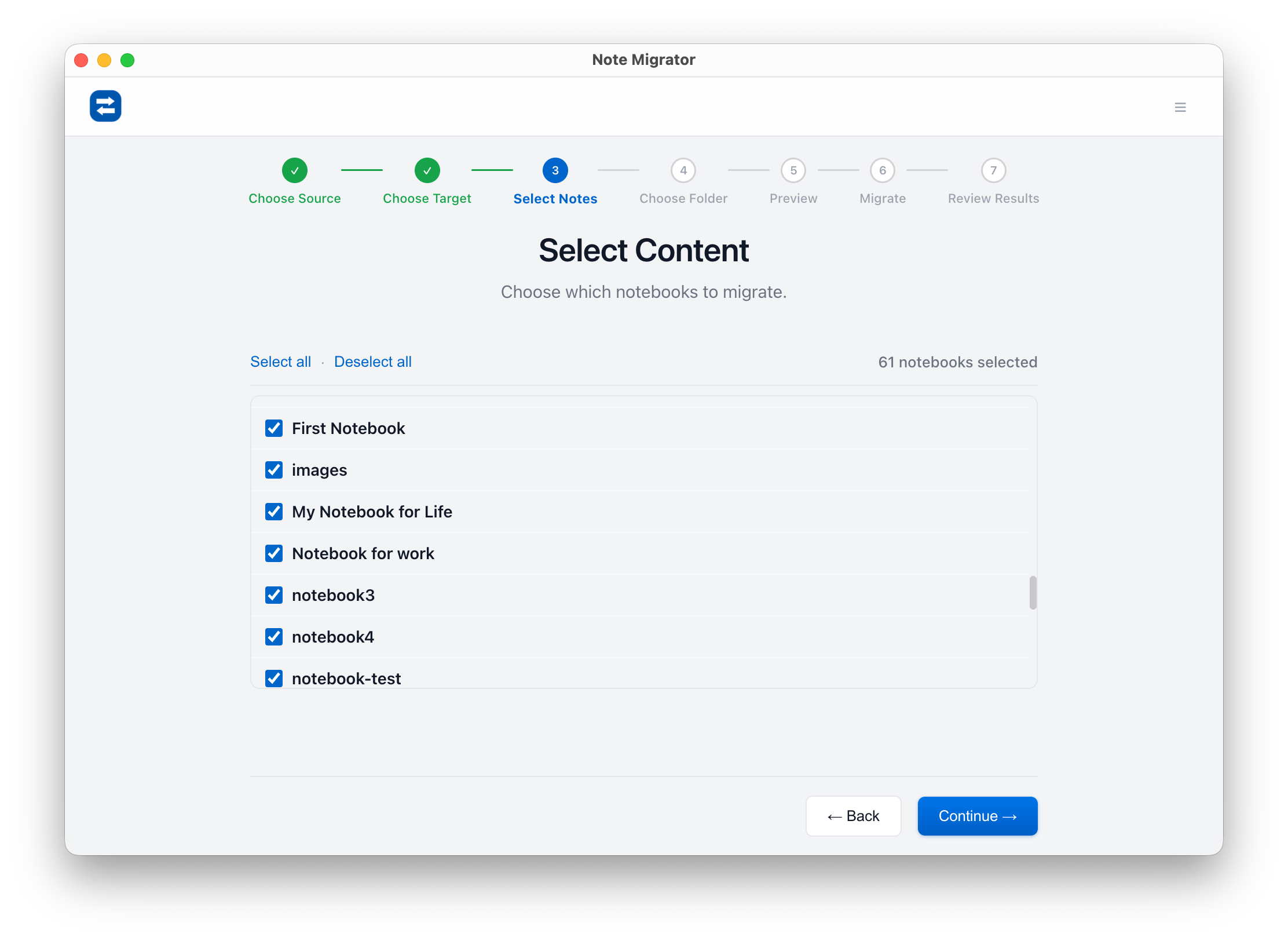
5. Select Notebooks to Export
Choose which of your Evernote notebooks or sections you want to download as PDFs.
Select Source Notebooks
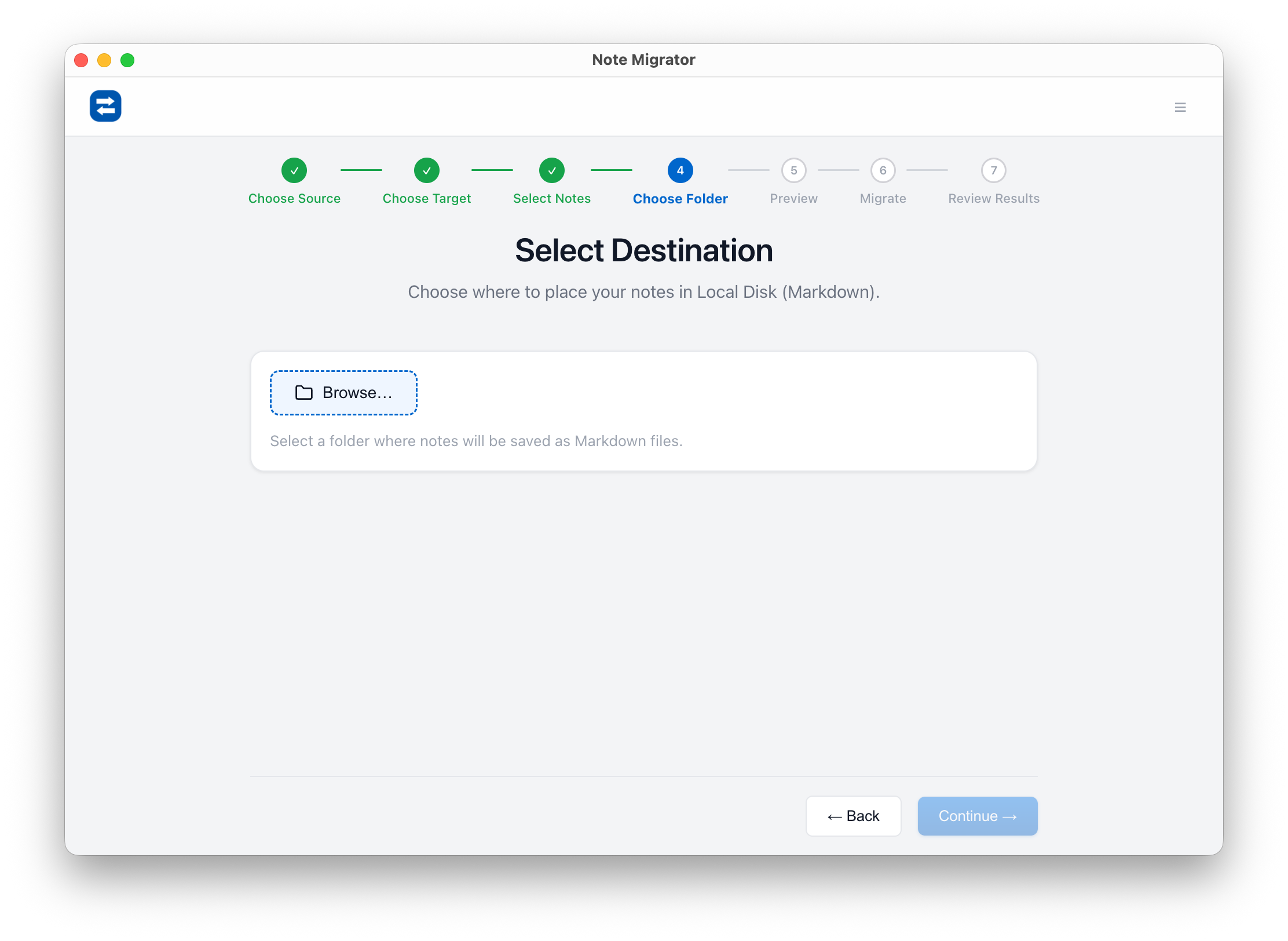
6. Choose Destination Folder
Select the folder on your hard drive where you want the resulting PDF files to be saved.
Select Target Folder
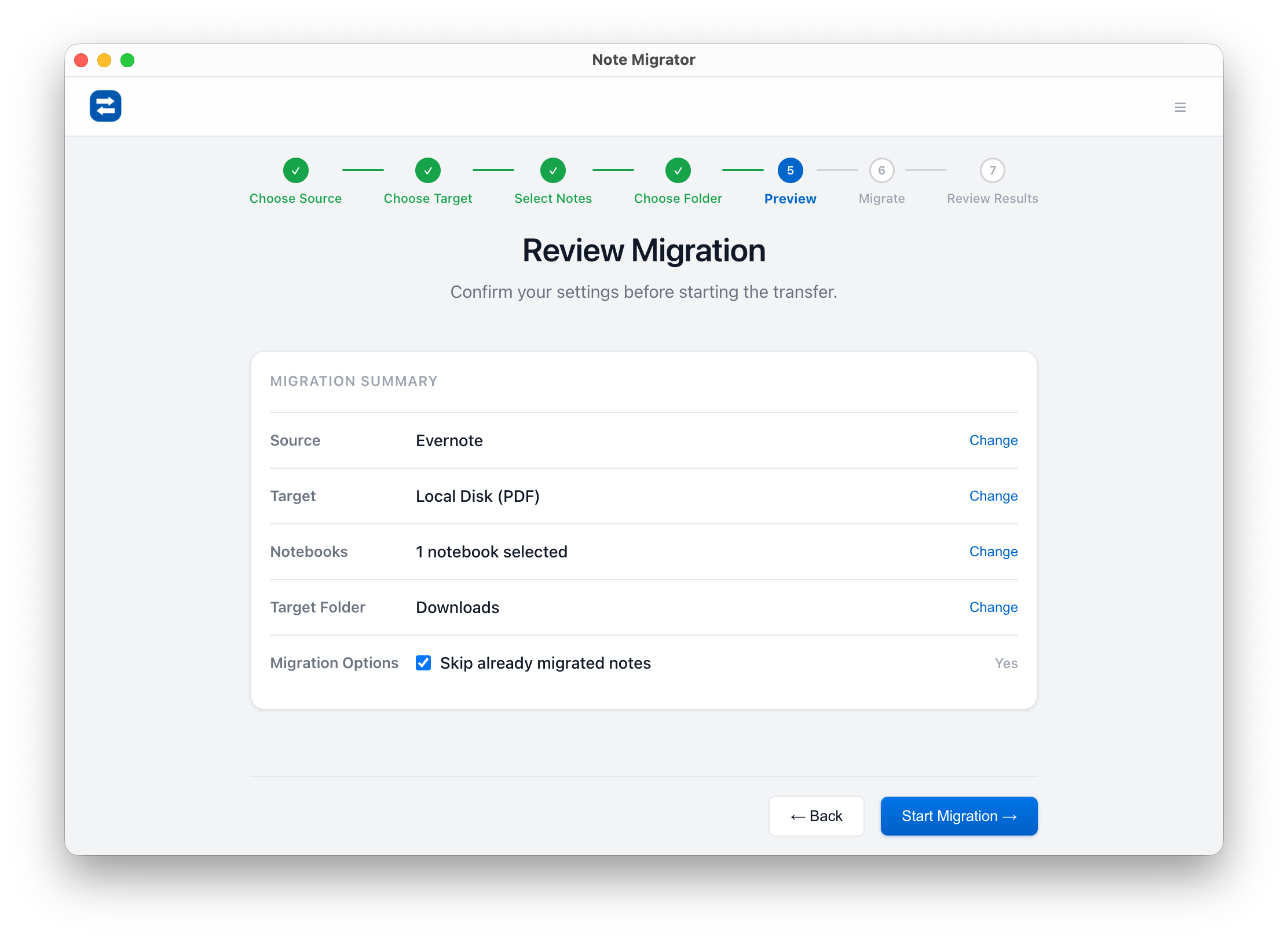
7. Review and Confirm
Verify your source, target, and output path choices before running the tool.
Review Selections
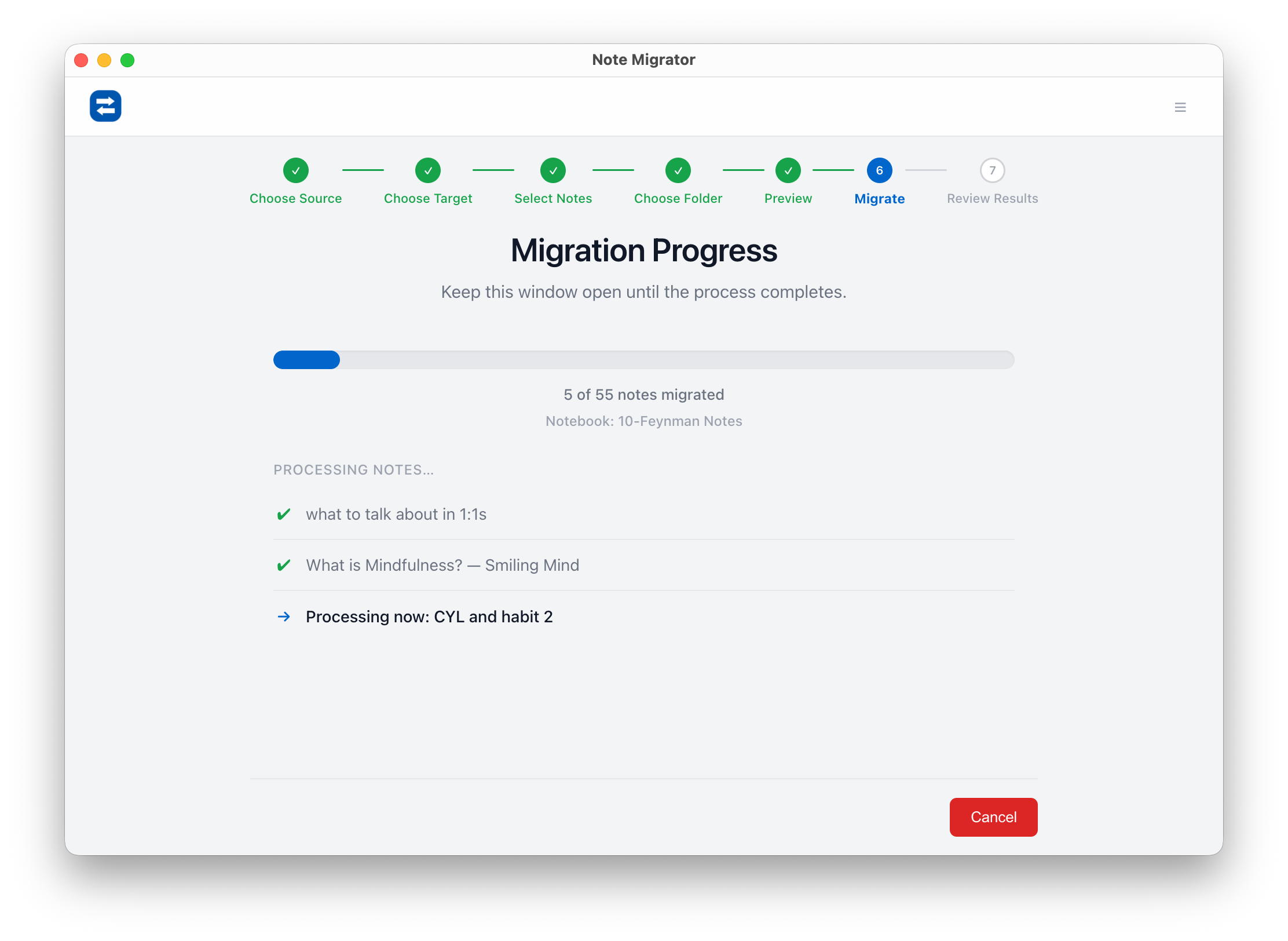
8. Run Migration
Click "Start" and watch live progress as Evernote notes are compiled and rendered to PDF.
Migration Progress
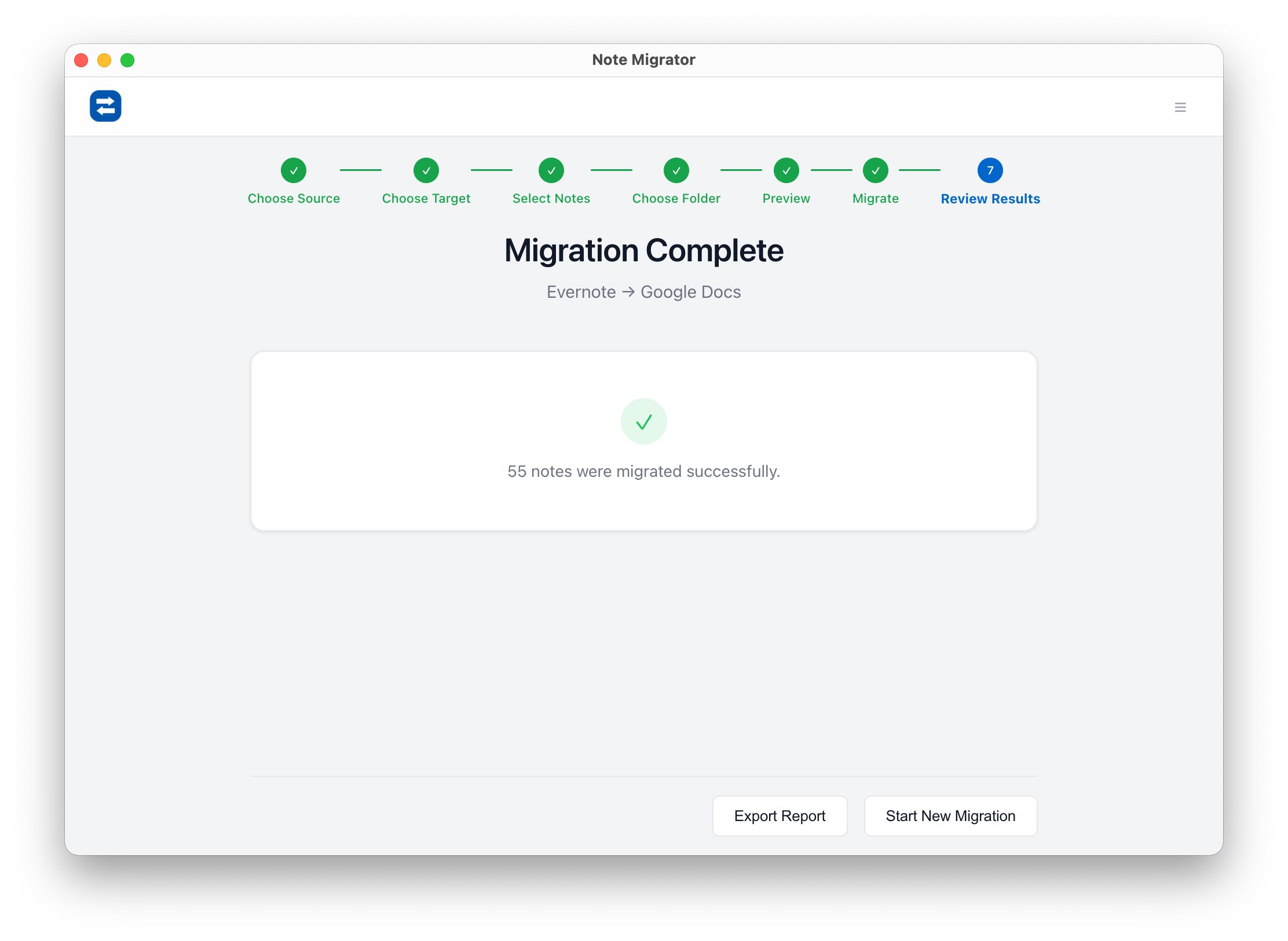
9. View Results
Once complete, open the selected folder to view your beautifully formatted PDF files.
Review Result
Get Started Today
Start securing your note archive today. NoteMigrator is a one-time purchase of $19.90, allowing you to run unlimited backups and exports to PDF, Markdown, and OneNote.
We build NoteMigrator and document note-migration workflows, destination-specific constraints, and privacy tradeoffs so readers can plan migrations with fewer surprises.
Move your notes into Microsoft Word. Learn how to convert your Evernote notebooks into local DOCX files with all formatting, tables, and attachments preserved.
Moving your notes from Evernote to Google Docs doesn't have to be a manual chore. Learn how to use NoteMigrator to safely and quickly transfer your entire library while preserving formatting and structure.