
Migrate Evernote to OneNote without rebuilding your notebooks by hand.
NoteMigrator is built for the highest-intent Evernote exit path: preserving notebook structure, attachments, and page content while moving into OneNote through the official Microsoft flow.
- Preserves notebook structure and attachments
- Connects through official Evernote and Microsoft OAuth
- Runs conversion locally before sending to OneNote
Why people choose NoteMigrator
Save hours of manual work
No exporting, no copy-paste. Connect your accounts once, and NoteMigrator automatically transfers every notebook and note.
Your notes stay on your computer
Your notes are converted locally—not on our servers. Only the destination you authorize, such as OneNote or Google Docs, ever receives your data.
Migrate with confidence
Pause and resume at any time, retry individual failed items without starting over, and review a detailed migration report when the transfer is complete.
What NoteMigrator keeps intact
- Notebook structure
- Notebooks become matching notebooks and sections in OneNote, keeping your structure intact.
Before — Evernote After — OneNote - Core formatting
- Headings, lists, emphasis, and basic structure carry over into the OneNote page.
Before — Evernote After — OneNote - Images and assets
- Embedded images stay inline on the page, not stripped out as separate files.
Before — Evernote After — OneNote - Attachments and files
- PDFs, Word docs, and other files become attachments on the page instead of being left behind or broken.
Before — Evernote After — OneNote
How the migration works
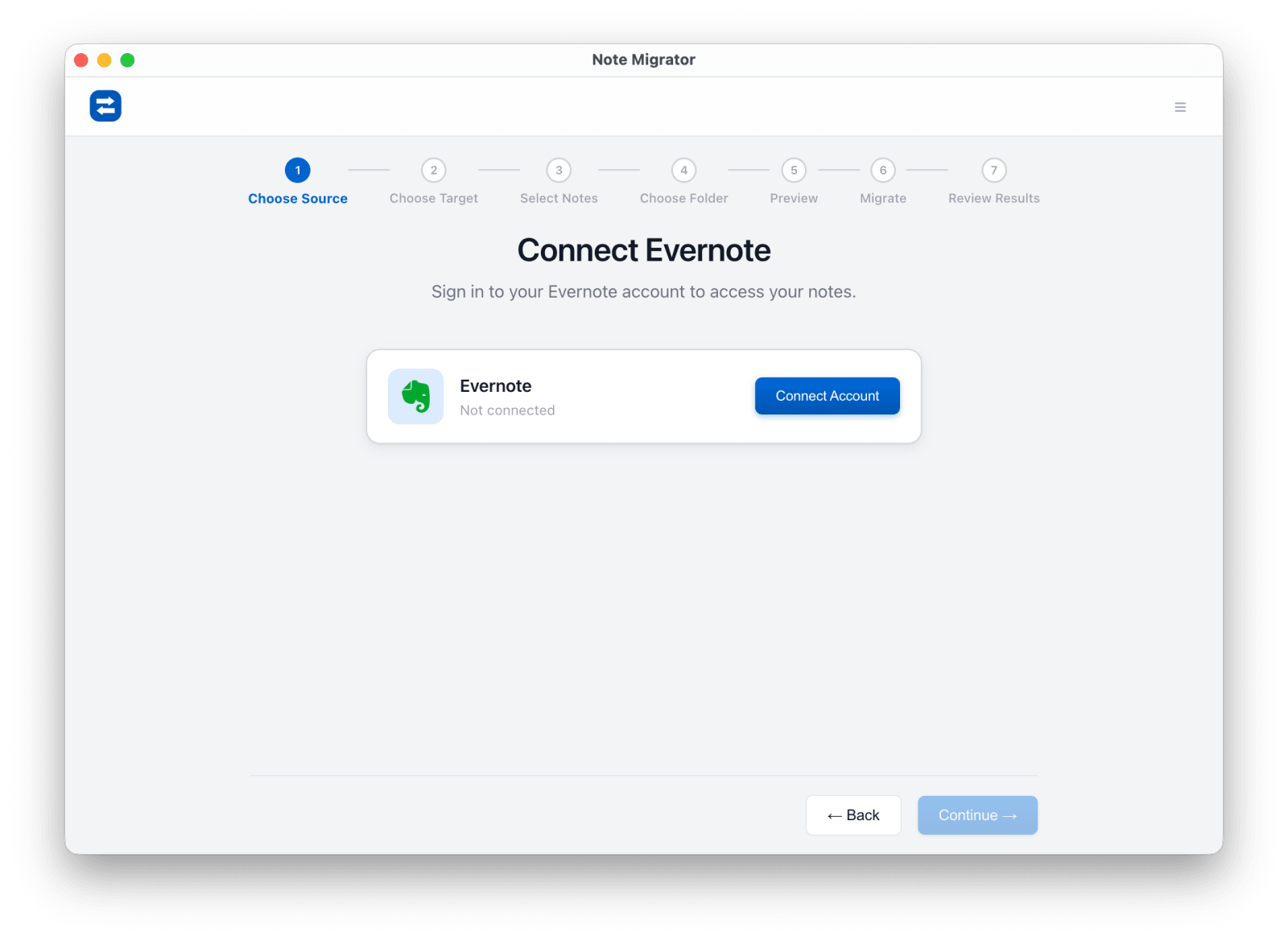
Connect Evernote
Sign in, choose Evernote as the source, and authorize access through the official flow.
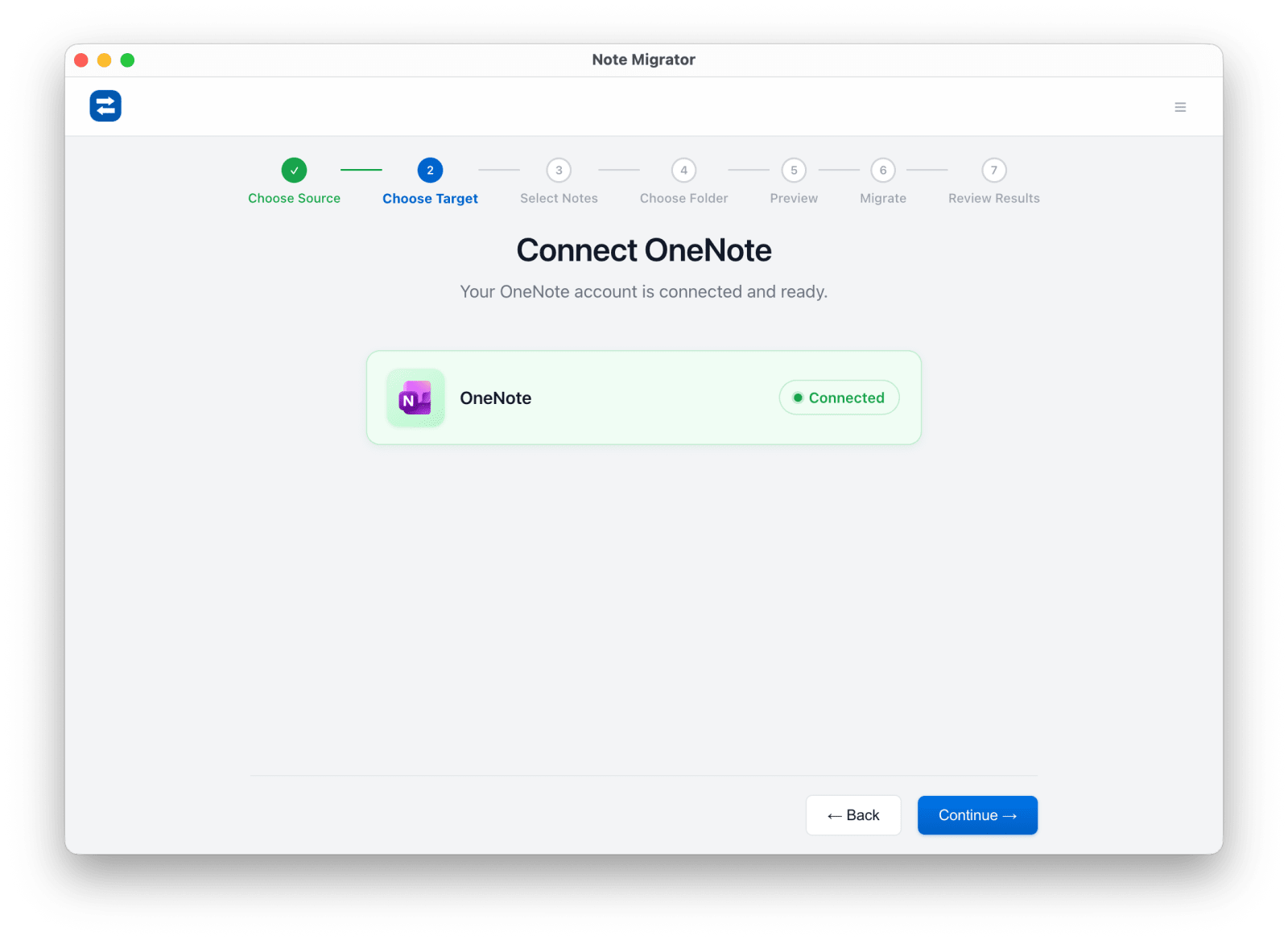
Connect OneNote
Select OneNote as the target and authorize your Microsoft account.
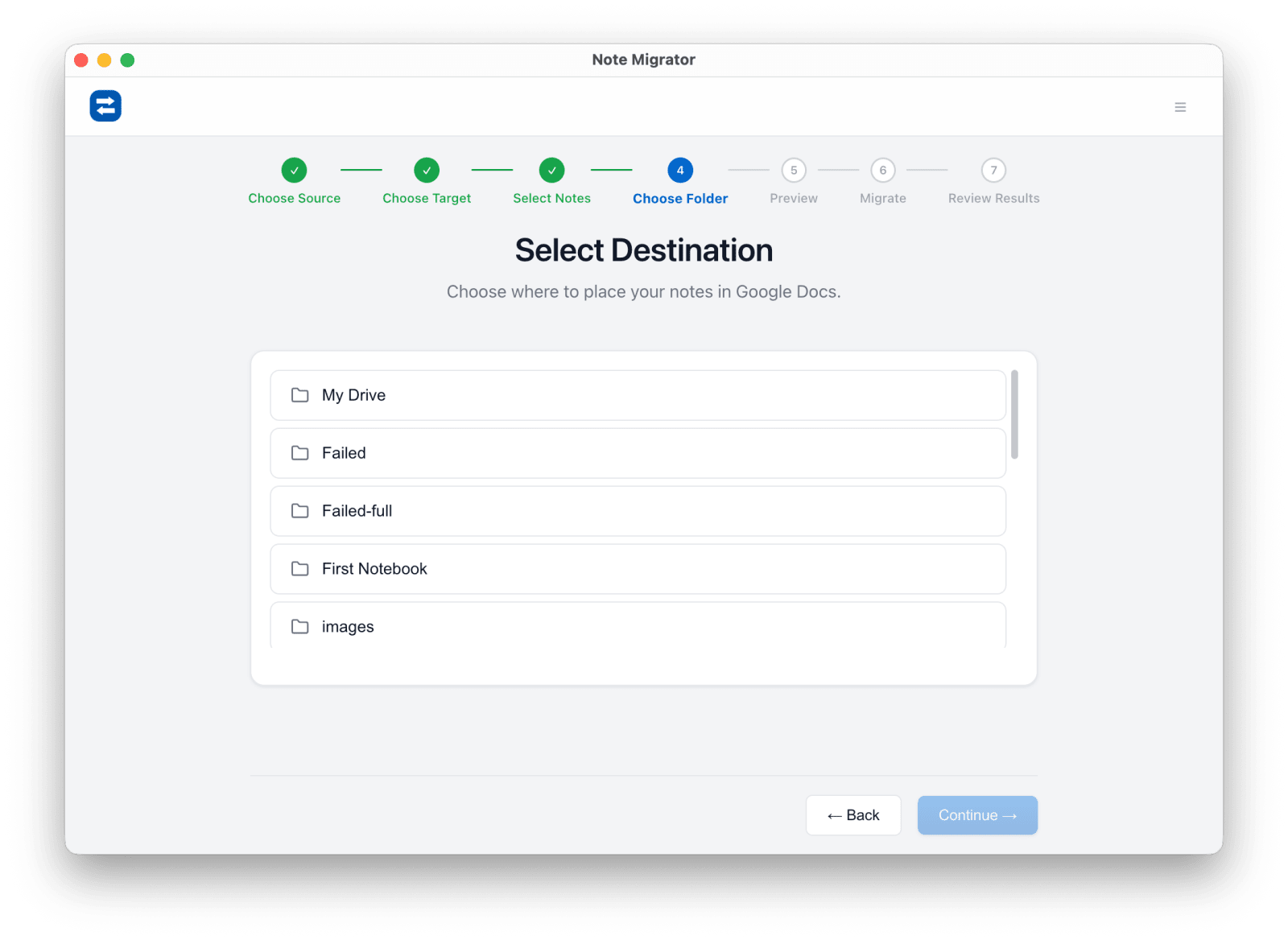
Choose notebooks
Pick the Evernote notebooks you want to migrate and the target notebook in OneNote.
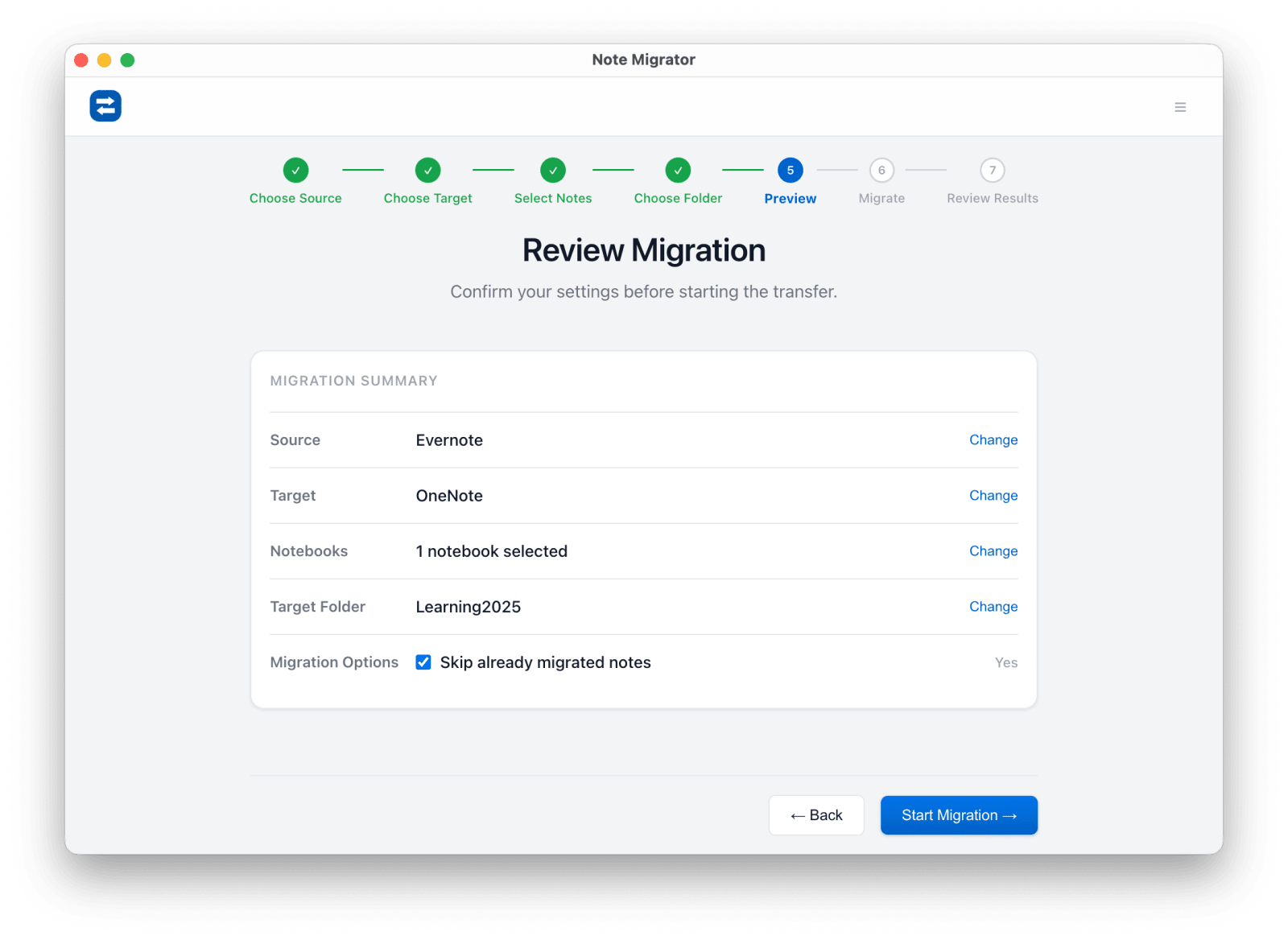
Review and run
Confirm the source, destination, and note counts before starting the import.
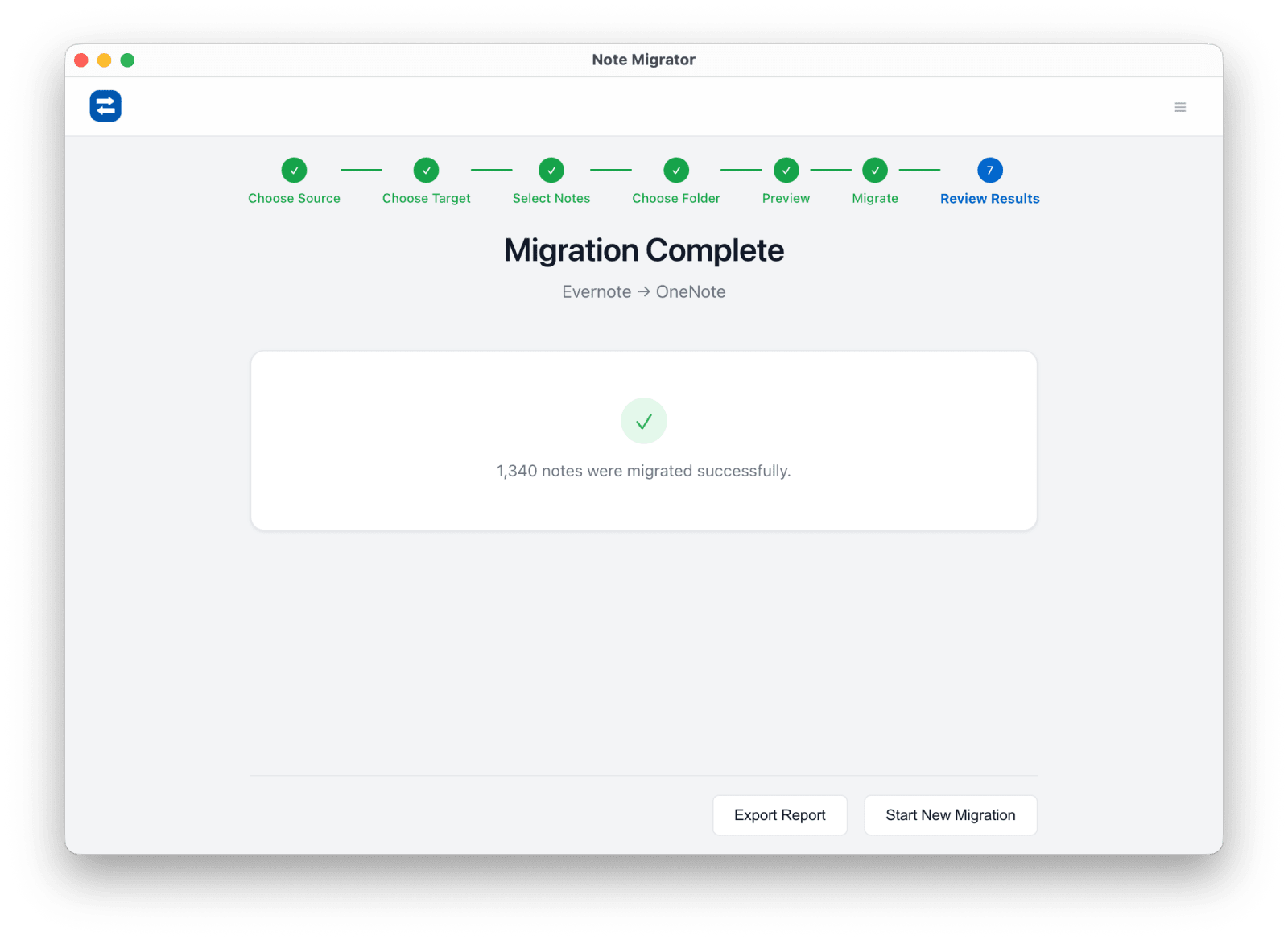
Verify results
Open OneNote after completion and spot-check a few rich notes while Microsoft sync settles.
Common Evernote to OneNote questions
Will I keep attachments and images?
Yes. Attachments and inline images are carried over alongside the target page where supported by OneNote.
Is this better than printing notes into OneNote?
Yes. Print-based workflows usually create static pages, while this route is designed to keep notes editable and structured.
Does NoteMigrator upload my notes to its own servers?
No. Conversion runs locally on your computer, and destination uploads go directly to the services you authorize.
Evernote to OneNote Migration
Ready to run the workflow? Start from the download page, or read the matching long-form guide first if you want more edge cases and screenshots.