Export Evernote to Word/DOCX Files on Your Local Disk (Step-by-Step)
Move your notes into Microsoft Word. Learn how to convert your Evernote notebooks into local DOCX files with all formatting, tables, and attachments preserved.
On this page
Export Evernote to Word/DOCX Files on Your Local Disk (Step-by-Step)
If you are transitioning to Microsoft Office, Word, or other text editors, converting your Evernote notes into Microsoft Word (.docx) files locally is a great choice. Word documents are widely used, easily editable, and support rich formatting, images, and embedded files.
In this guide, we'll walk you through how to export your Evernote notebooks to clean, organized DOCX files locally on your computer using NoteMigrator.
Why Export to DOCX Locally?
1. Seamless Word Integration
DOCX is the default file format for Microsoft Word, Google Docs, and LibreOffice. If you need to edit your notes, write documents, or share files with teams, DOCX is the standard choice.
2. Local Privacy and Security
NoteMigrator operates entirely locally. Your notebooks, text formatting, and files are processed inside your device sandbox and never travel over intermediate servers, guaranteeing 100% privacy.
3. Rich Formatting Preservation
Word files support nested tables, complex text formatting (highlighting, headings, inline styles), and inline media. NoteMigrator translates Evernote's proprietary ENML formatting to clean Word styles automatically.
What NoteMigrator Preserves in the DOCX Export
Our local migration tool takes care of:
Notebook folders: Generates matching system directories for each of your notebooks.
Embedded elements: Saves inline photos, drawings, and documents inside the DOCX file.
Formatting details: Preserves lists, links, text sizing, lists, and structures.
Timestamps: Retains original creation and modification dates.
Step-by-Step Export Guide
Follow this tutorial to perform the migration:
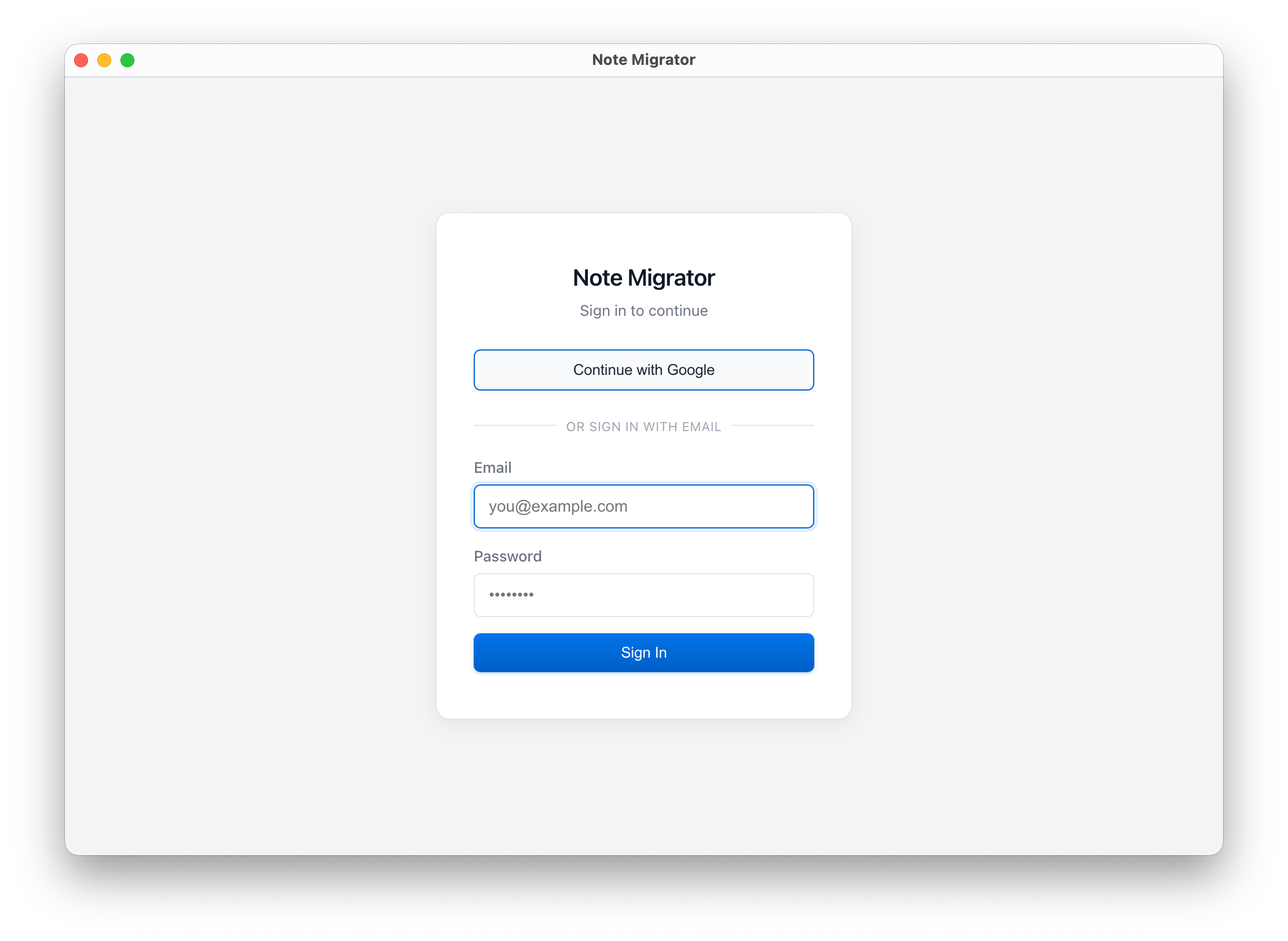
1. Log in to NoteMigrator
Open the NoteMigrator desktop app and sign in.
Log in to NoteMigrator
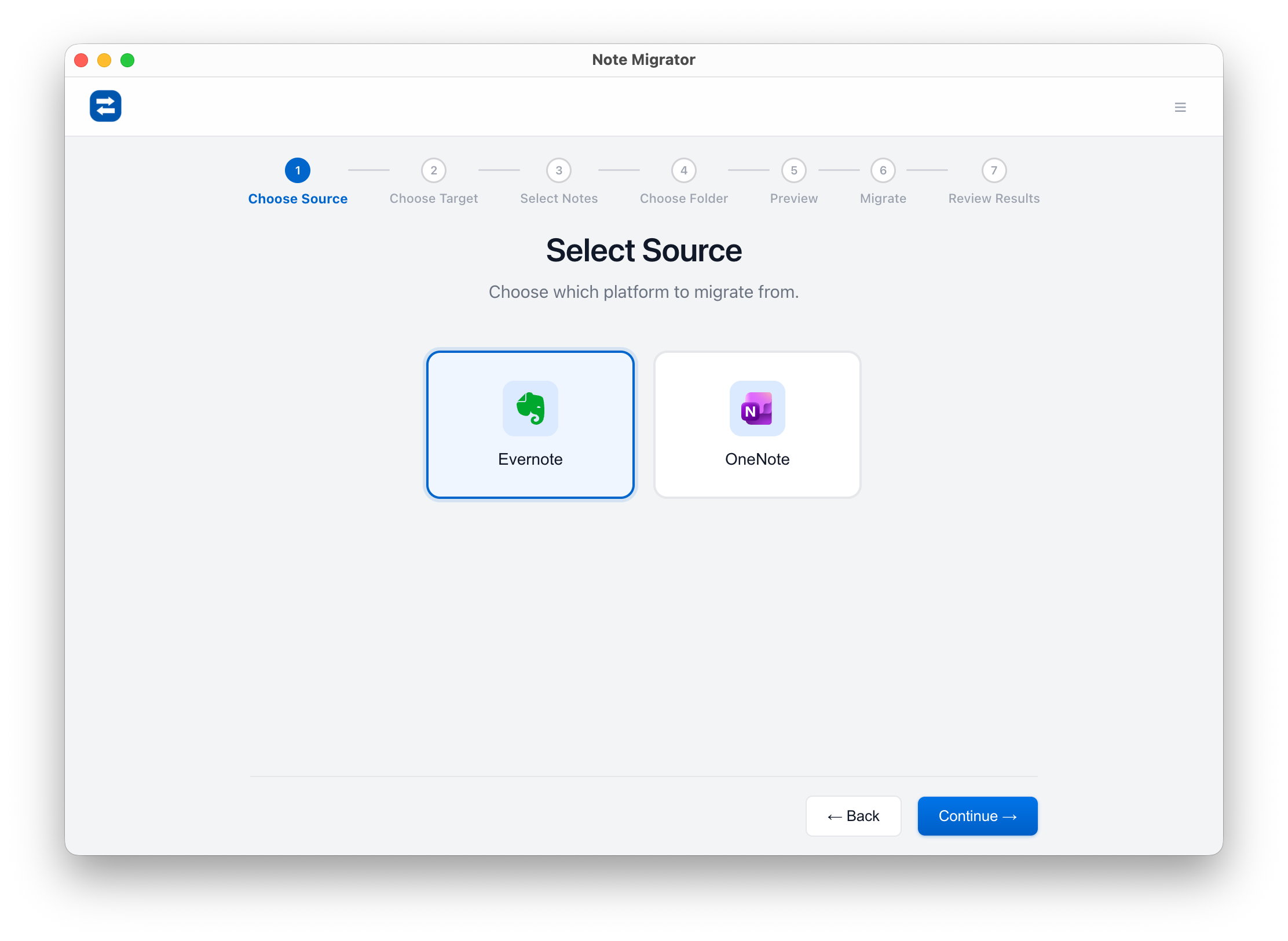
2. Select Evernote as Source
Choose Evernote as your source platform.
Select Evernote source
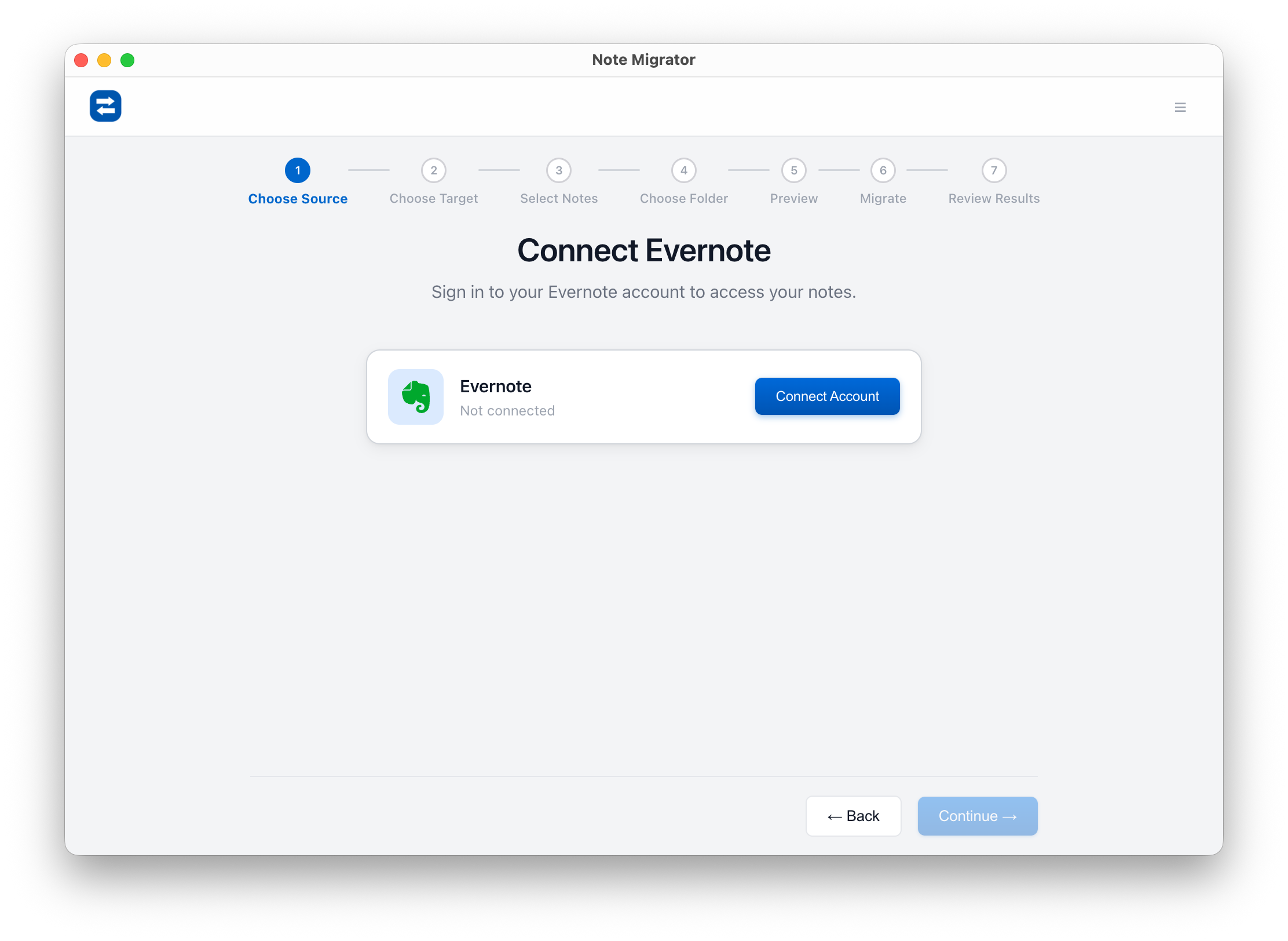
3. Connect Evernote Account
Log in to securely authorize access to your Evernote notes.
Connect Evernote Account
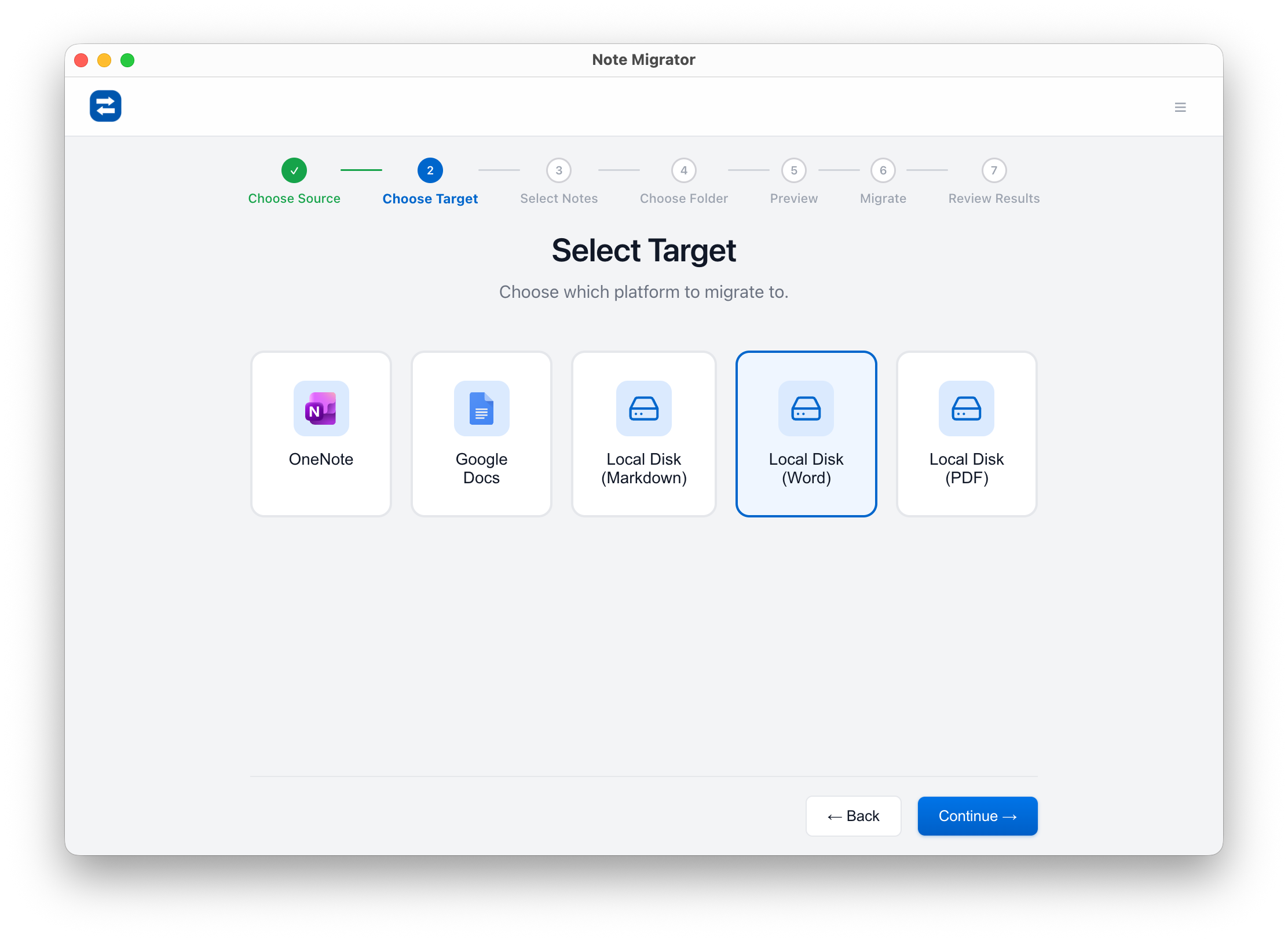
4. Choose Local DOCX as Target
Select "Local DOCX" (Word) as the export target.
Select Local DOCX target
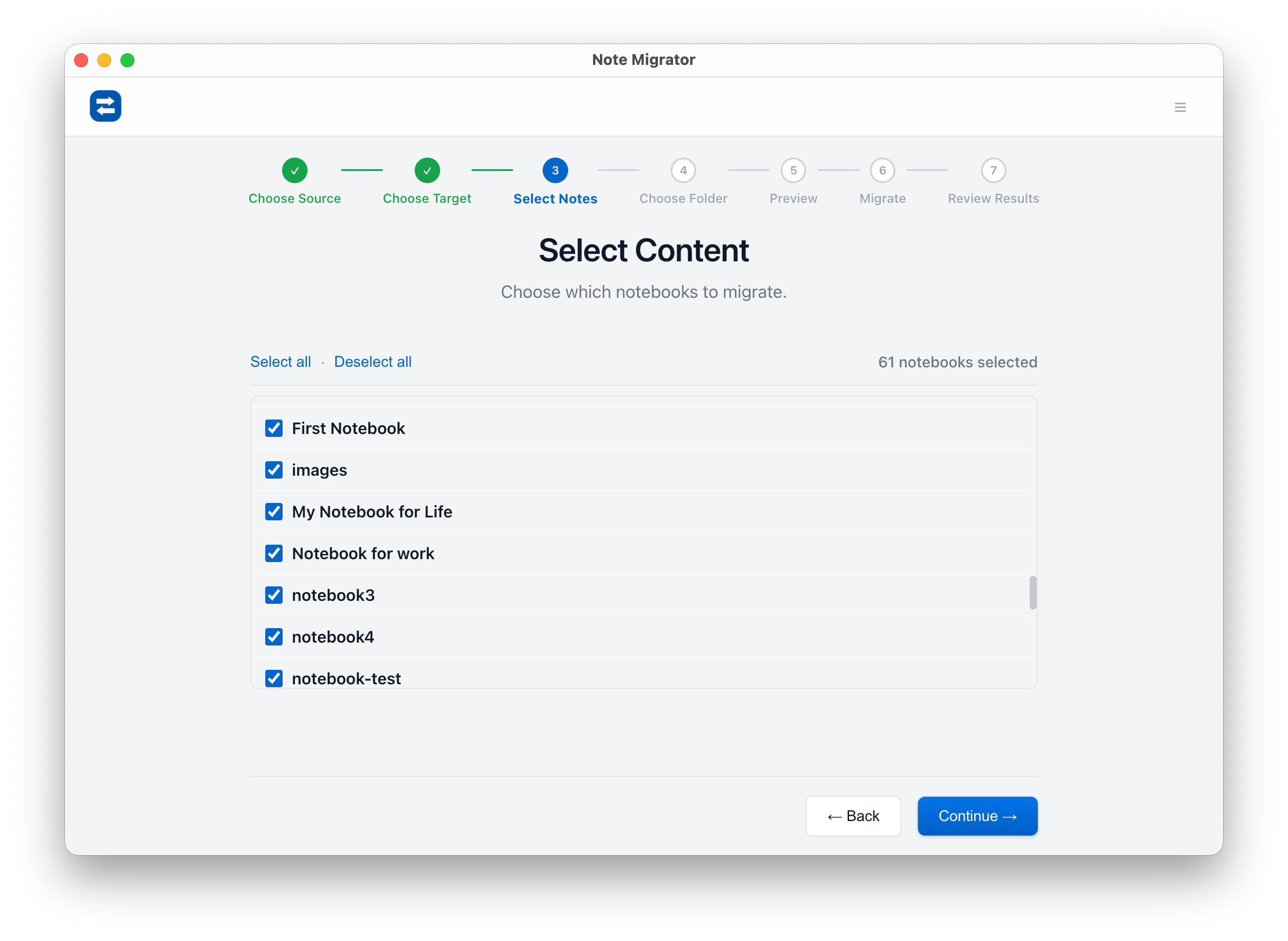
5. Select Notebooks to Export
Choose which of your Evernote notebooks you wish to convert.
Select Source Notebooks
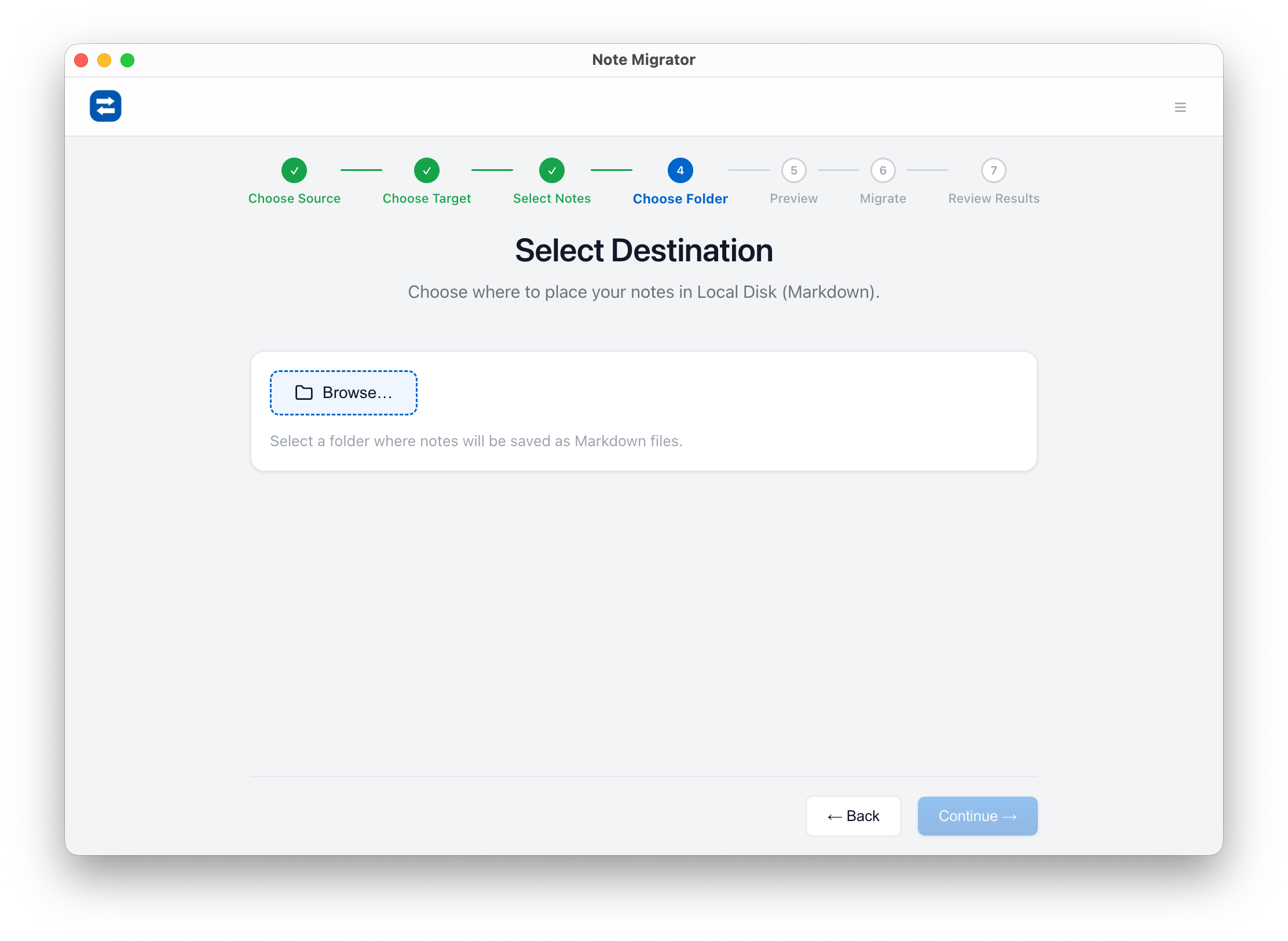
6. Choose Destination Folder
Choose the local directory folder where the DOCX files will be saved.
Select Target Folder
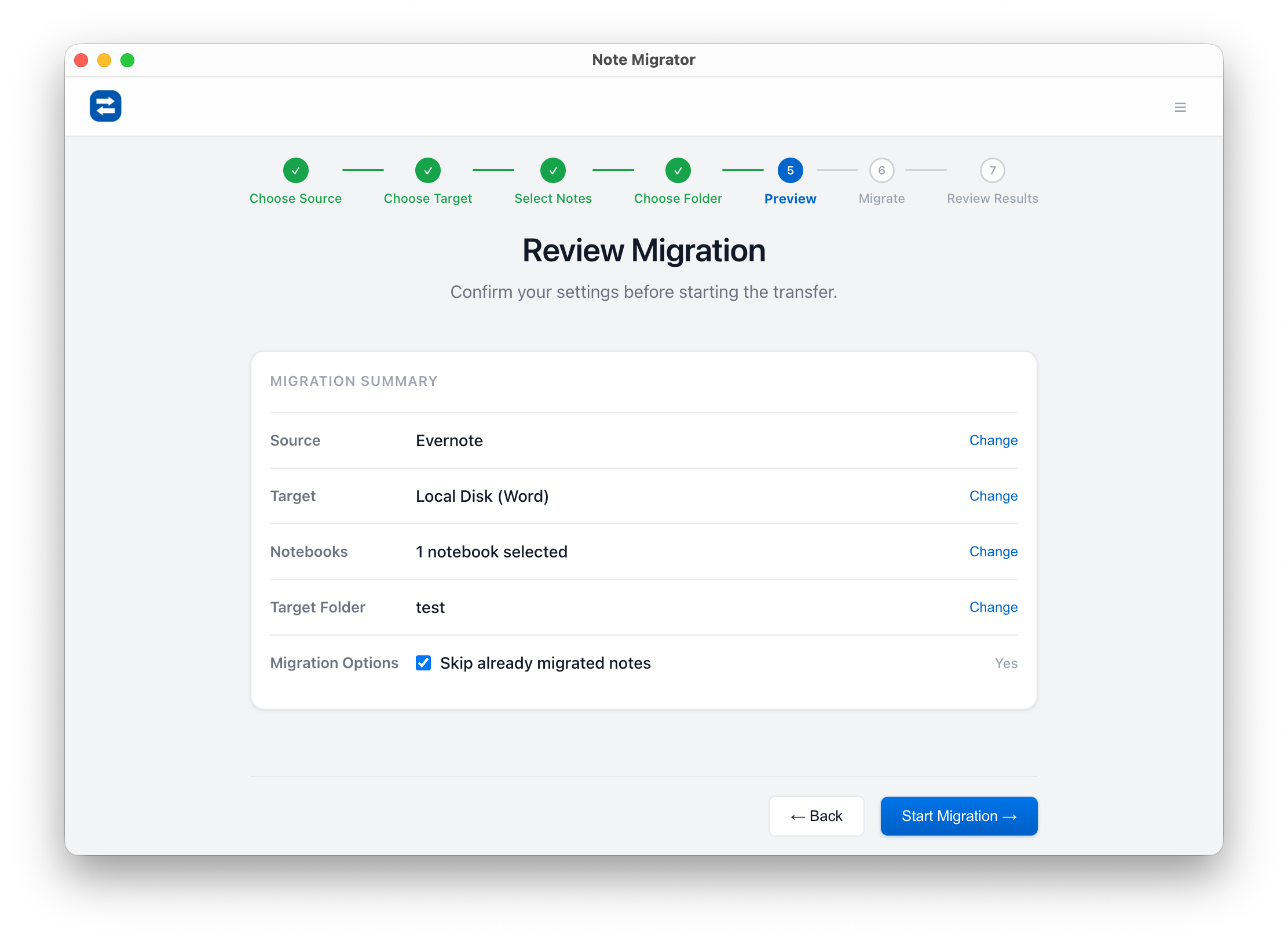
7. Review and Confirm
Double check all options before starting the migration.
Review Selections
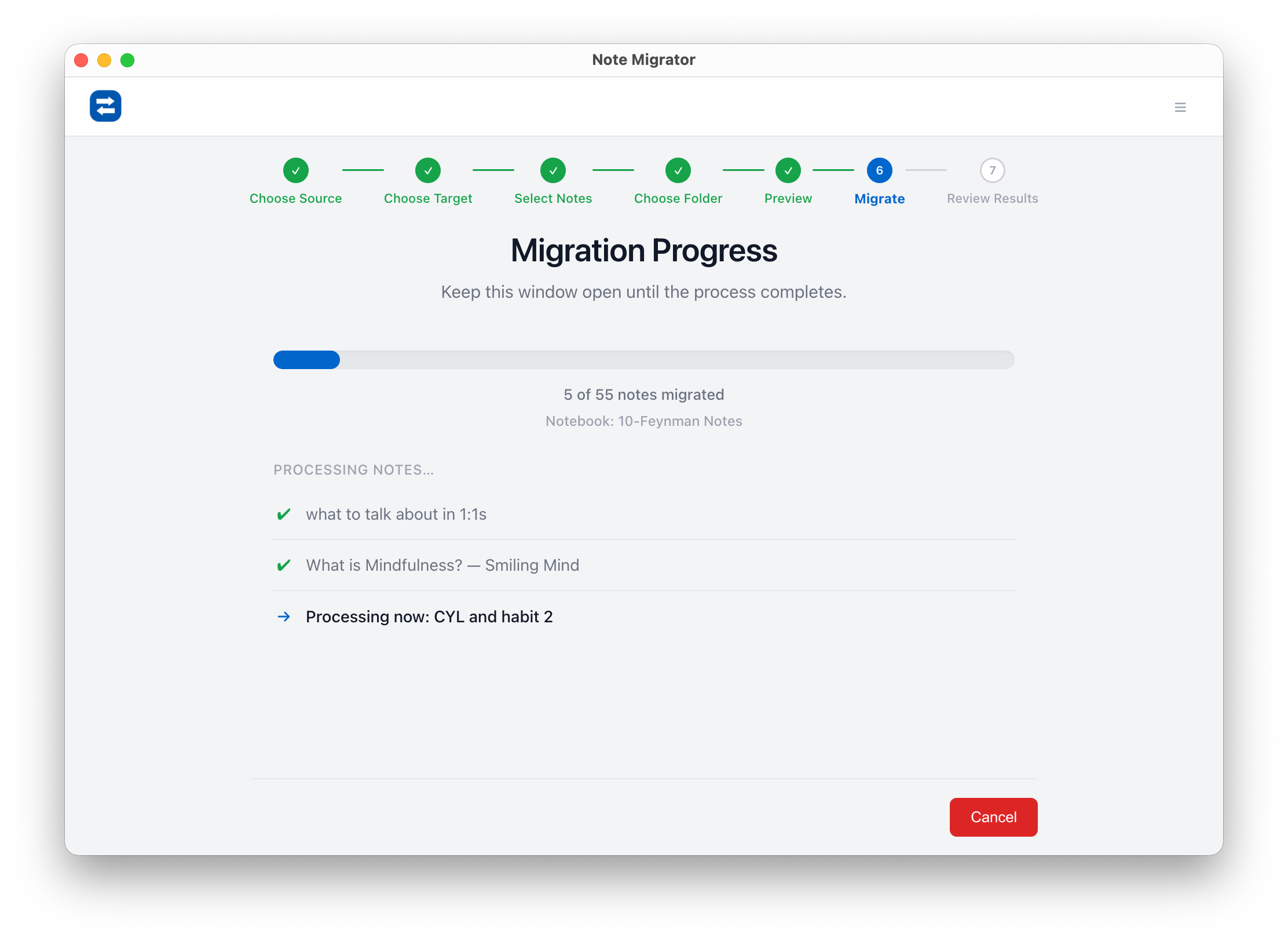
8. Run Migration
Click "Start" and watch live progress as Evernote notes are compiled and saved as DOCX files.
Migration Progress
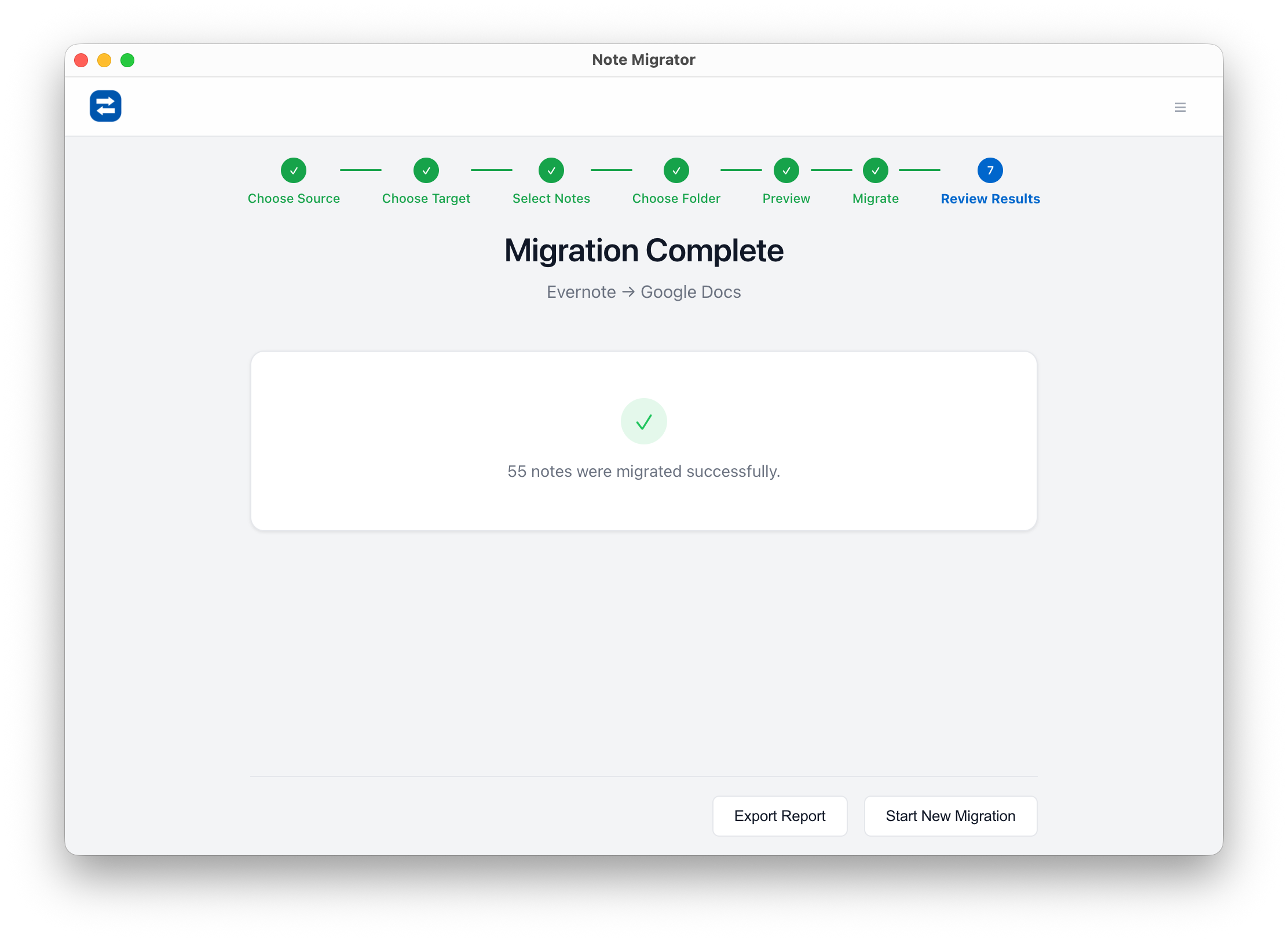
9. View Results
Once complete, open the target directory to find your newly generated Microsoft Word files.
Review Result
Get Started Today
Migrate your notebooks to Word today. NoteMigrator is a one-time purchase of $19.90, allowing you to run unlimited backups and exports to DOCX, PDF, Markdown, and OneNote.
We build NoteMigrator and document note-migration workflows, destination-specific constraints, and privacy tradeoffs so readers can plan migrations with fewer surprises.
Archive your notes in a standard, universally readable format. Learn how to convert your Evernote notebooks into local PDF files with all formatting, layouts, and attachments preserved.
Moving your notes from Evernote to Google Docs doesn't have to be a manual chore. Learn how to use NoteMigrator to safely and quickly transfer your entire library while preserving formatting and structure.