Export OneNote to Markdown on Your Local Disk (Without Losing Structure)
Convert your OneNote notebooks into clean Markdown files saved directly to your local disk, so your notes stay portable, searchable, and fully under your control.
On this page
Export OneNote to Markdown on Your Local Disk (Without Losing Structure)
If your notes live only inside OneNote, you’re trusting one app and one ecosystem with years of ideas.
Exporting to Markdown on your local disk gives you long-term control: plain text files you can open anywhere, back up anywhere, and search with any tool.
That’s exactly what NoteMigrator is built for — helping you move from OneNote to a future-proof folder of Markdown notes, without the usual cleanup nightmare.
Why local Markdown export matters for OneNote users
OneNote is great for capture and collaboration, but local portability can be frustrating when you need a durable archive.
A local Markdown export solves three big problems:
1) You reduce platform lock-in
Markdown files are readable in Obsidian, Logseq, VS Code, Typora, Notion importers, and countless other tools. If your workflow changes, your notes don’t get stranded.
2) You get backup freedom
Once notes are on disk as .md files, you can:
copy them to an external drive,
sync with Dropbox, iCloud, or Syncthing,
or version them in Git.
No special database restore process required.
3) You improve AI and search readiness
LLM workflows, local RAG pipelines, and command-line search tools work best with plain files. Markdown gives you clean inputs for AI without fragile copy/paste from app UIs.
What NoteMigrator preserves during export
A usable export is more than raw text. NoteMigrator is designed to keep the structure and context that make your notes useful on day one.
Preserved element
Why it matters
Notebook and section hierarchy
Your archive remains familiar and easy to navigate
Page titles and timestamps
Keeps chronological context for projects and meeting notes
Images and file attachments
Assets stay linked to the right notes
Lists, headings, links, code blocks
Markdown remains readable and clean
Deterministic filenames
Better for backups, diffs, and automation
Step-by-Step Export Guide
Here is the exact process to convert your OneNote notebooks to local Markdown files using NoteMigrator:
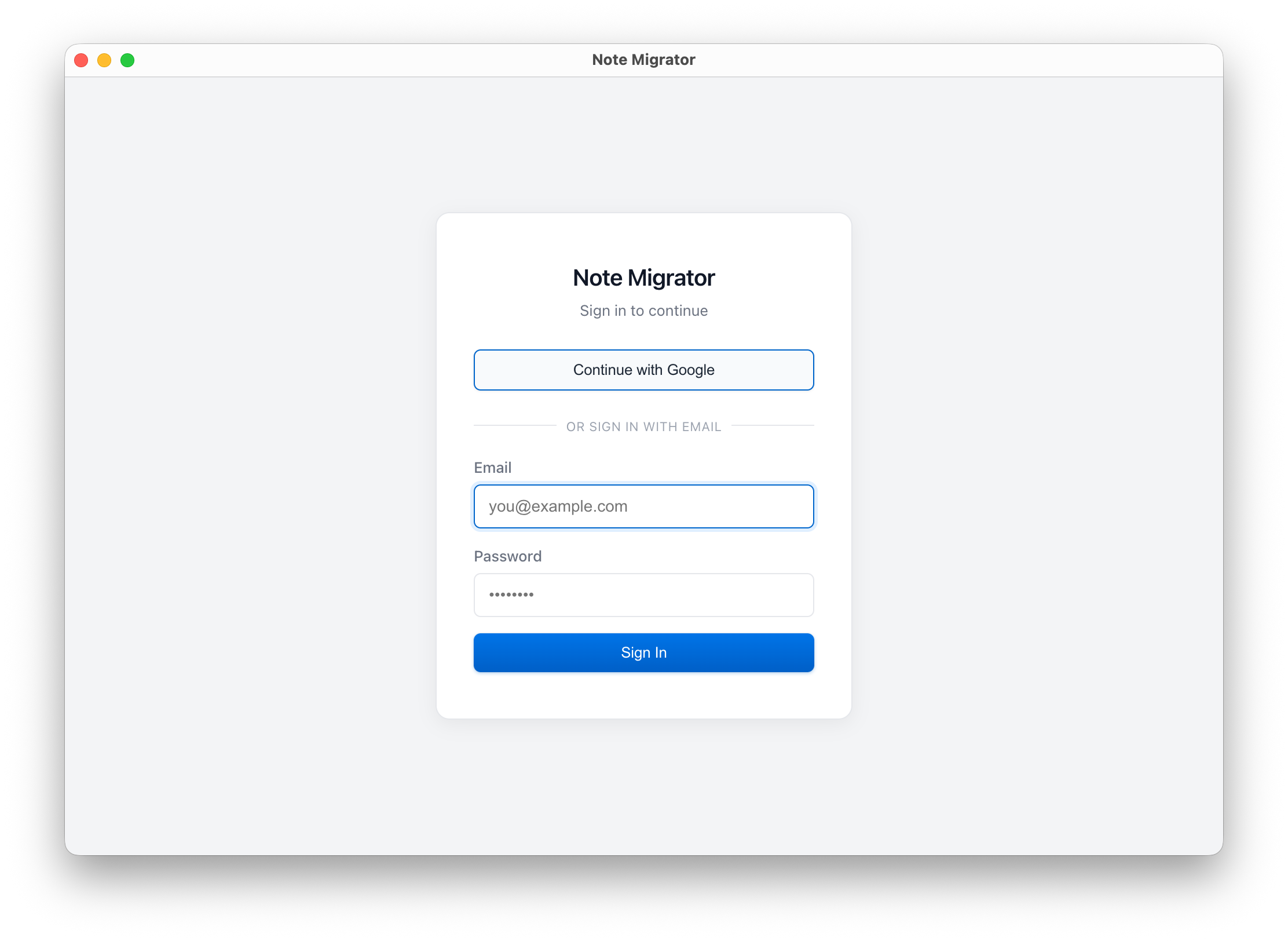
1. Log in to NoteMigrator
Start by logging in to your NoteMigrator account.
Log in to NoteMigrator
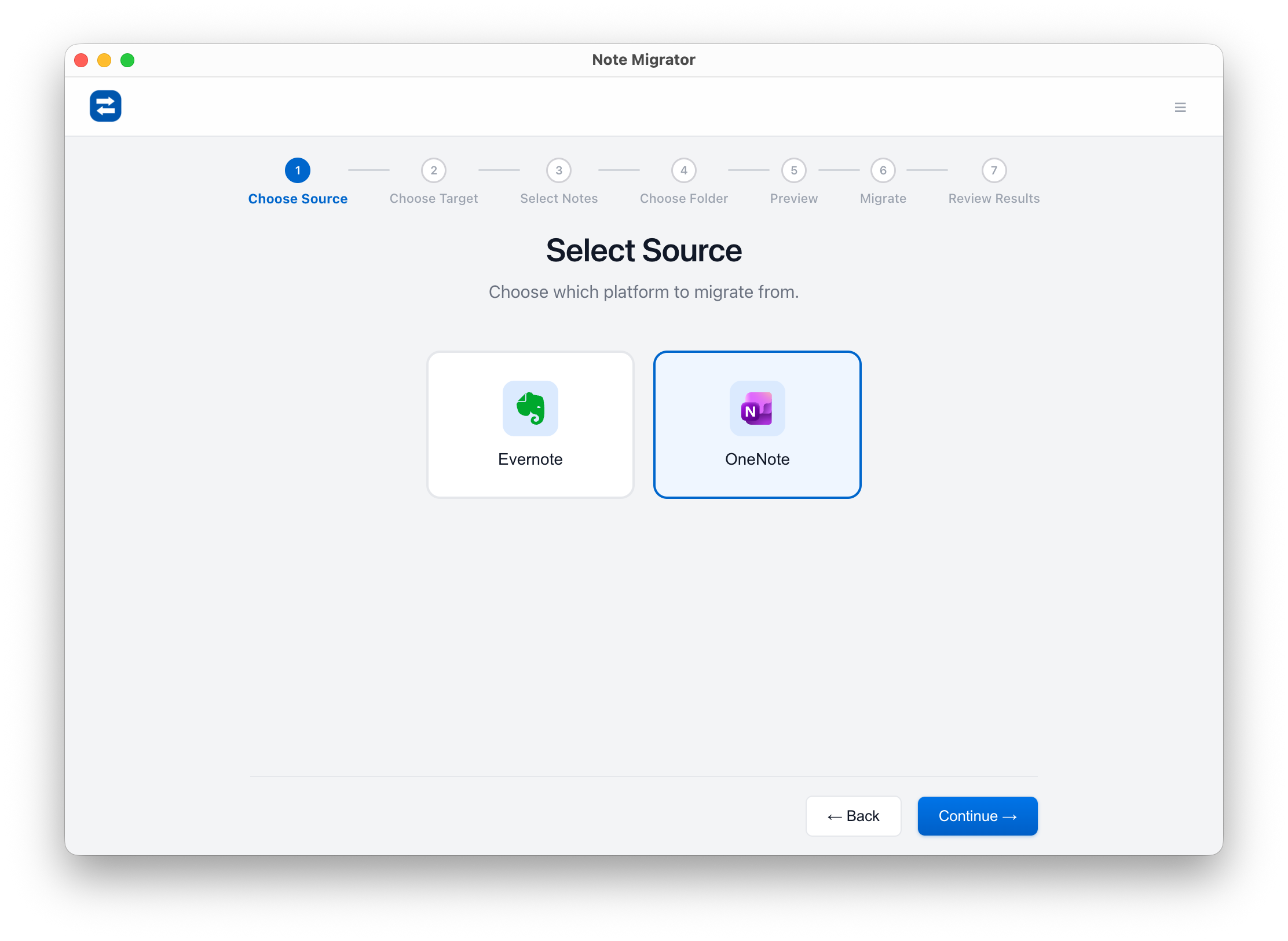
2. Select OneNote as Source
Choose Microsoft OneNote as your migration source.
Select OneNote source
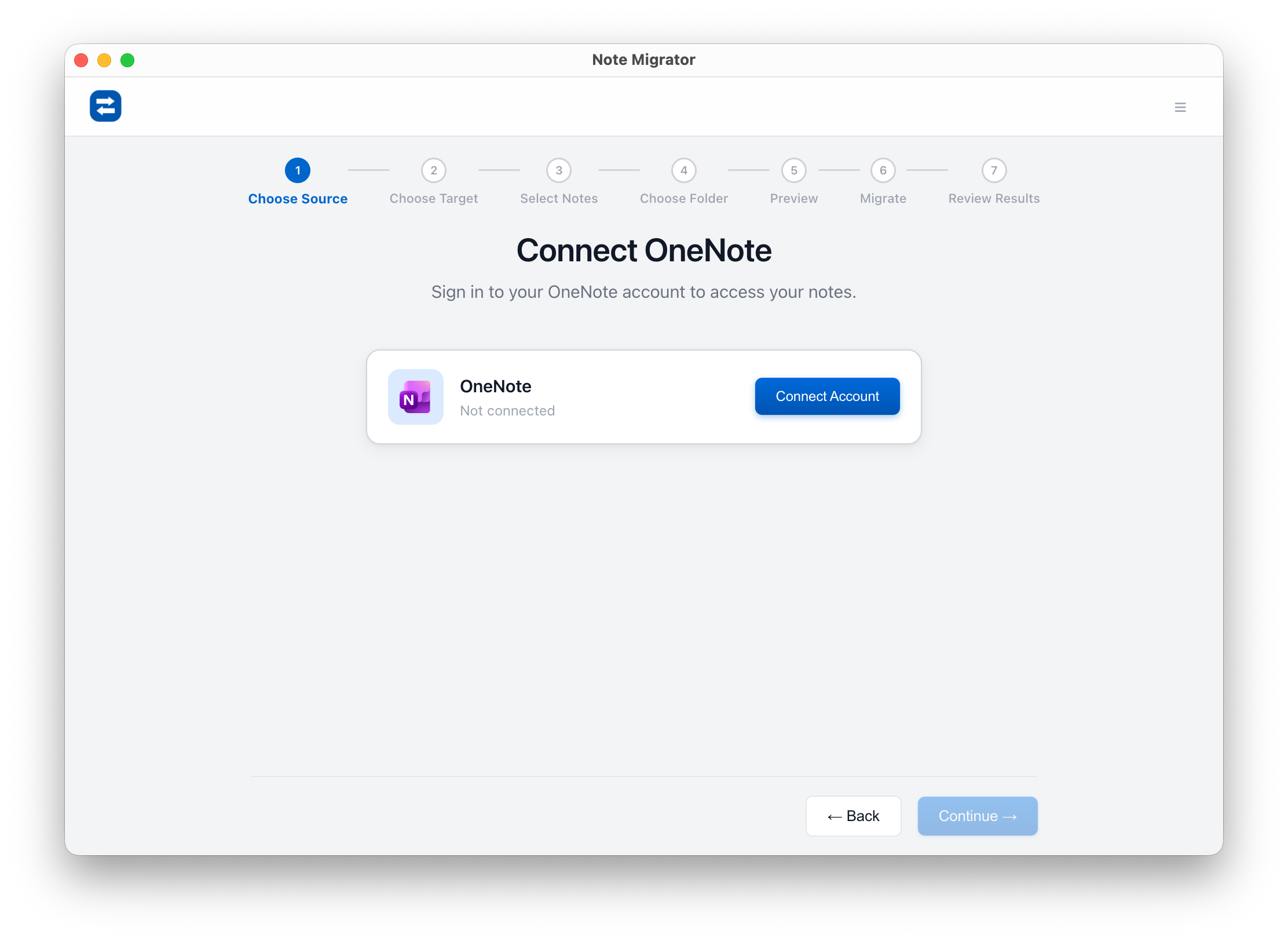
3. Connect Microsoft Account
Connect to your OneNote account securely to access your notebooks.
Connect Microsoft Account
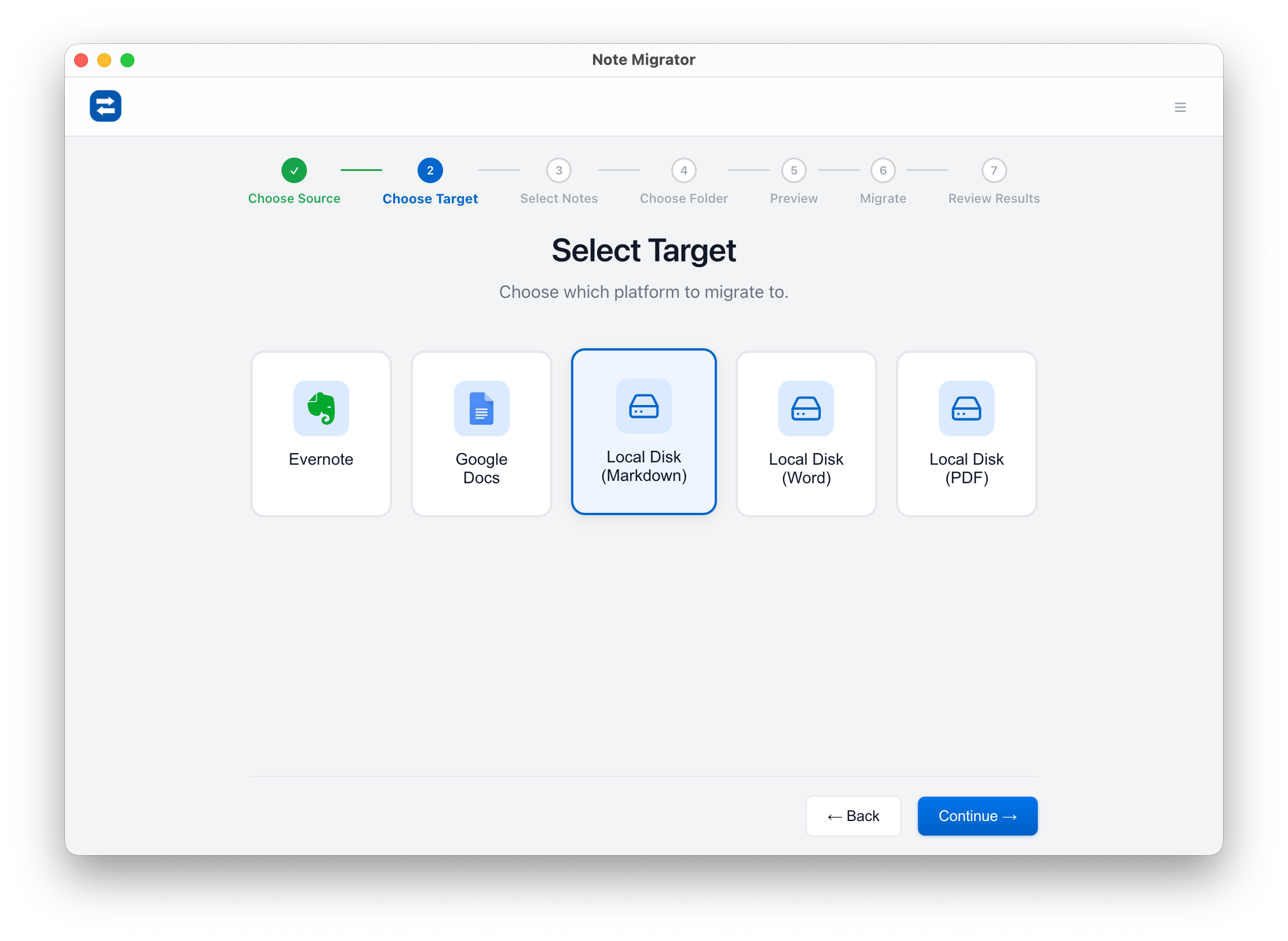
4. Choose Local Markdown as Target
Select "Local Markdown" as your migration target to download your notes.
Select Local Markdown target
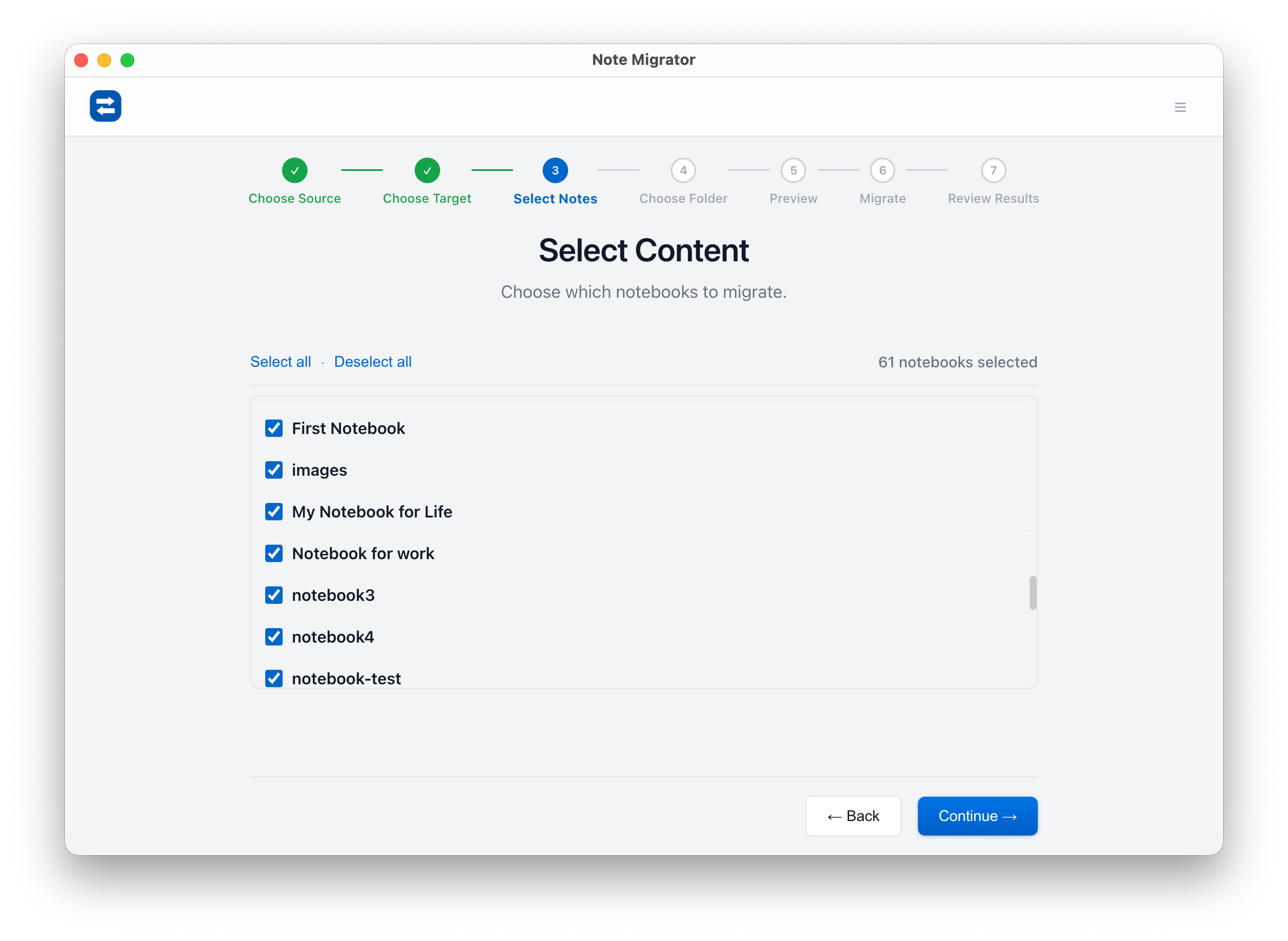
5. Select Notebooks to Export
Choose which of your OneNote notebooks you want to export.
Select Source Notebooks
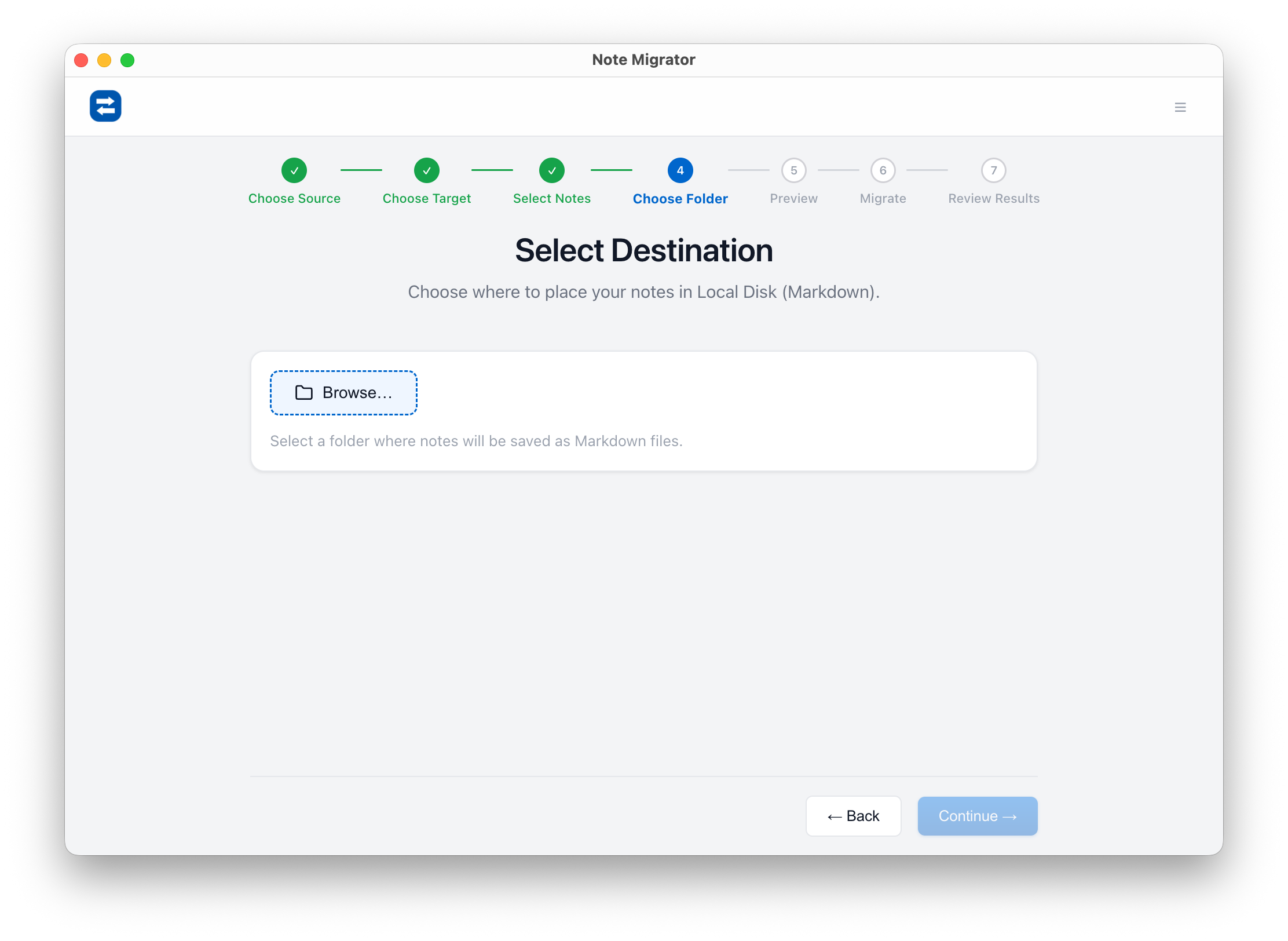
6. Choose Destination Folder
Select the folder on your local computer where you want the Markdown files to be saved.
Select Target Folder
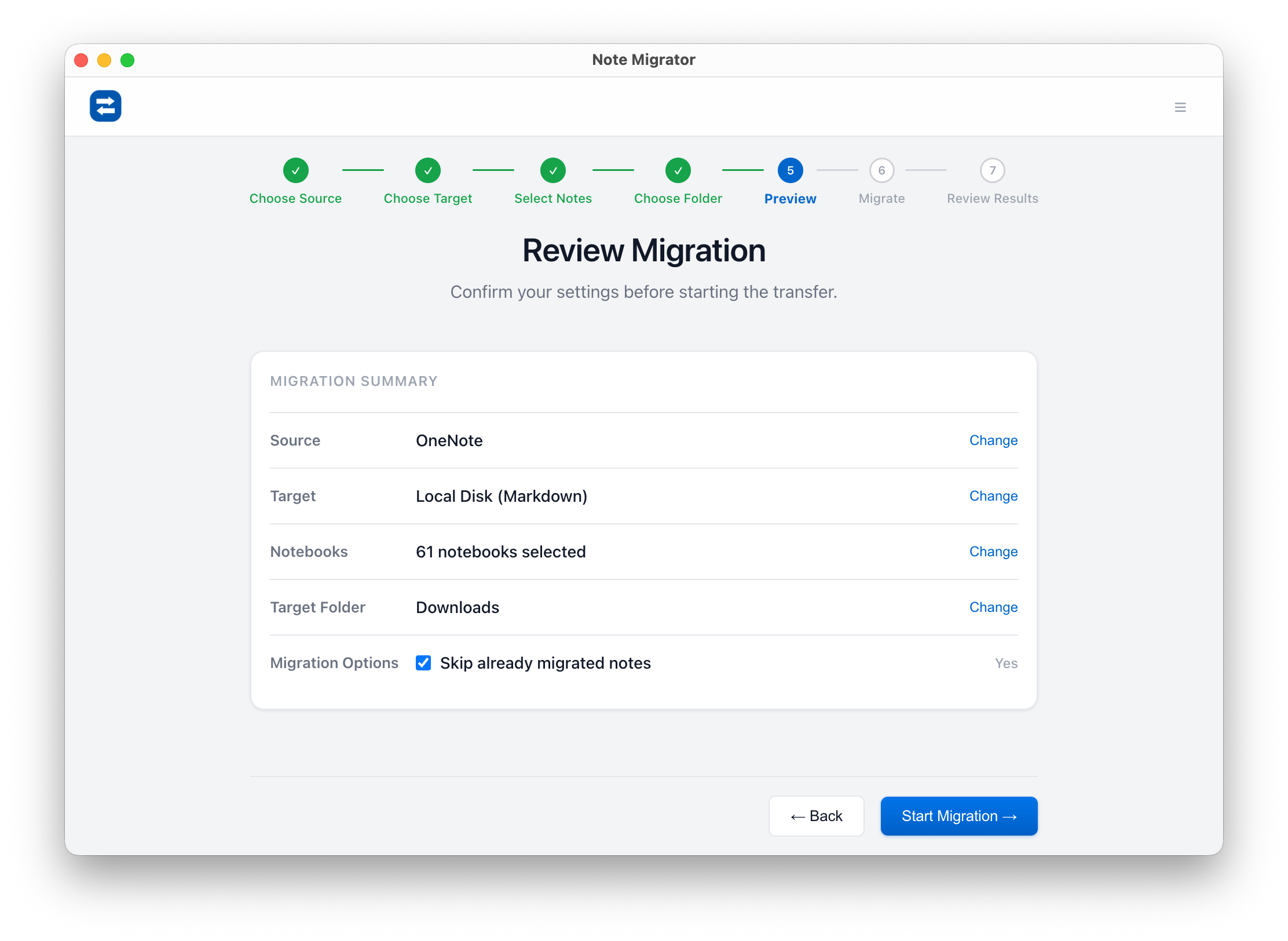
7. Review and Confirm
Review your settings before starting the export.
Review Selections
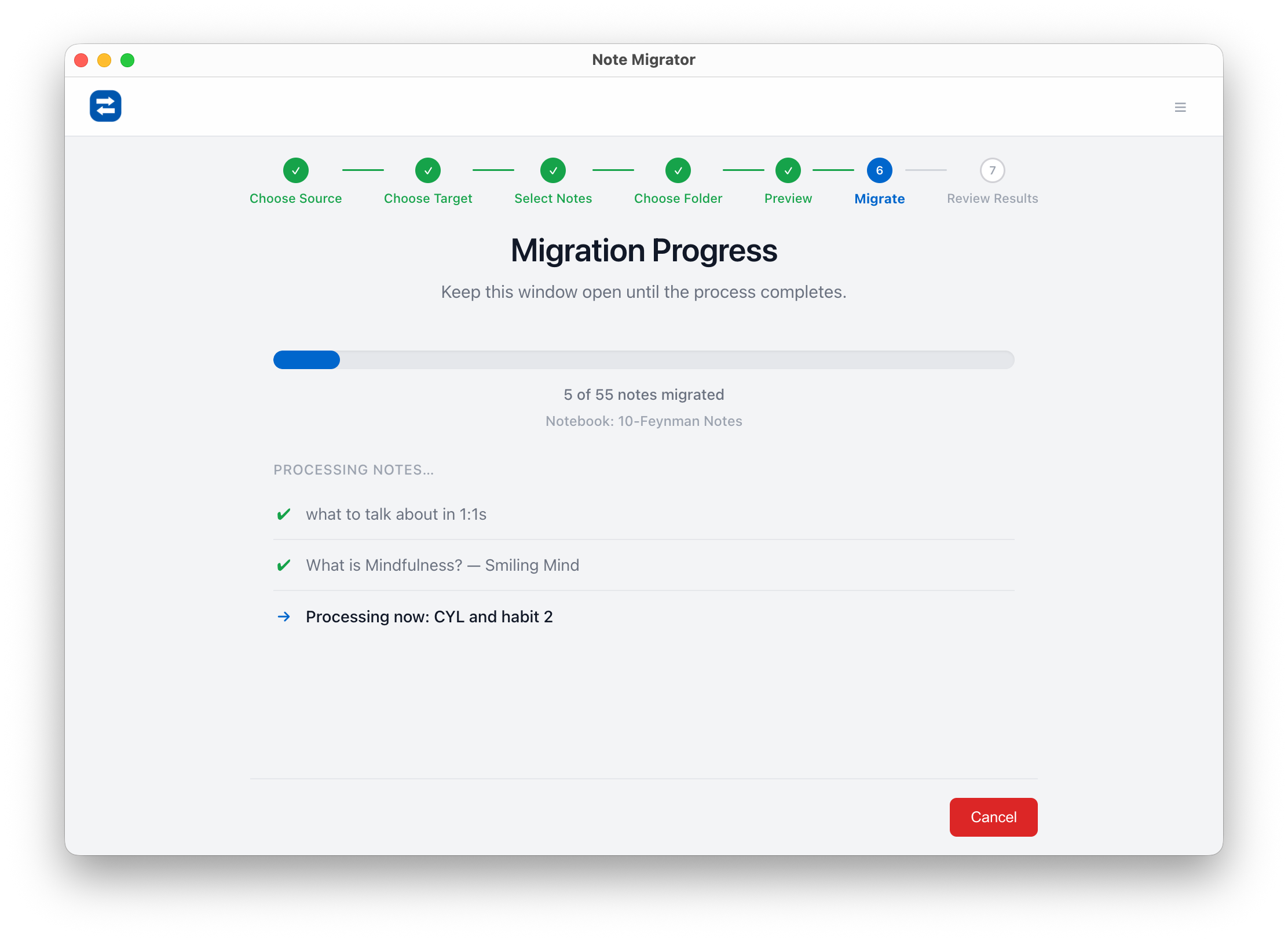
8. Run Migration
Watch the live progress as NoteMigrator converts your pages, layouts, and attachments to clean Markdown files.
Migration Progress
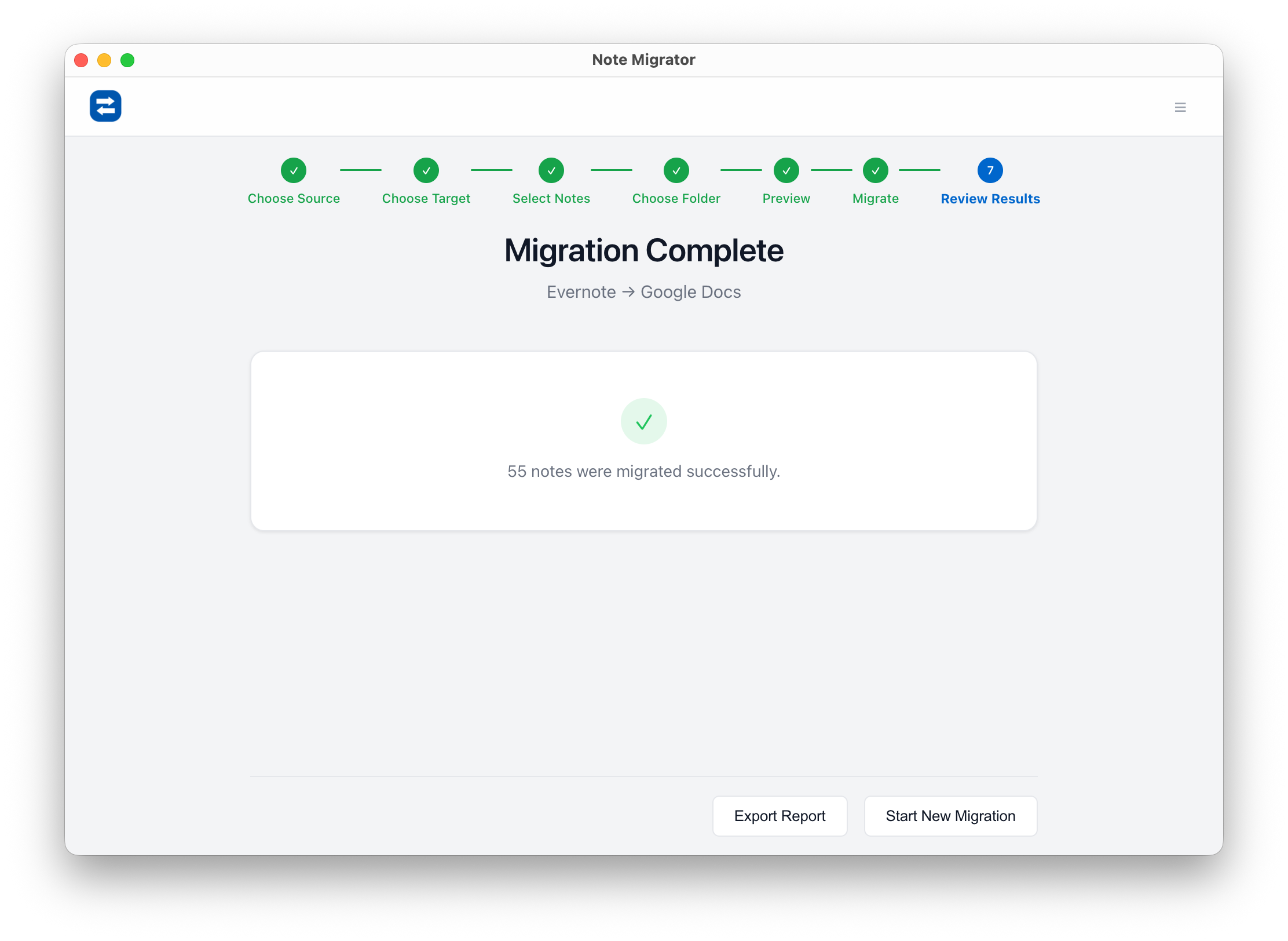
9. View Results
Once complete, review the summary showing all migrated notebooks, notes, and attachments. Your notes are now ready to open in Obsidian or any other local Markdown editor!
Review Result
Common questions before migrating
“Can’t I just export OneNote directly?”
Native export options can vary by account type, client, and destination format. Even when export is available, it may not produce a clean Markdown knowledge base ready for modern note tools.
“Will my notes be readable years from now?”
That’s the point of Markdown plus local files: open standards, plain text, and no dependency on a single vendor’s proprietary format.
“Do I need to migrate everything at once?”
No. Most users start with one notebook, validate the output, then export the rest.
What you can do right after export
Build a local Obsidian vault from your existing OneNote archive
Create a searchable knowledge base for writing or research
Feed notes into AI tooling with fewer formatting issues
Keep an independent backup that isn’t tied to one cloud account
Own your notes, not just access to them
Your notes are long-term intellectual assets. They deserve a format that survives app changes, subscription changes, and workflow changes.
Exporting OneNote to Markdown on local disk is the simplest way to protect that work — and keep it usable everywhere.
We build NoteMigrator and document note-migration workflows, destination-specific constraints, and privacy tradeoffs so readers can plan migrations with fewer surprises.
Move your notes into Microsoft Word. Learn how to convert your Evernote notebooks into local DOCX files with all formatting, tables, and attachments preserved.
Archive your notes in a standard, universally readable format. Learn how to convert your Evernote notebooks into local PDF files with all formatting, layouts, and attachments preserved.