How to Export Evernote to Google Docs: A Step-by-Step Migration Guide
Moving your notes from Evernote to Google Docs doesn't have to be a manual chore. Learn how to use NoteMigrator to safely and quickly transfer your entire library while preserving formatting and structure.
On this page
How to Export Evernote to Google Docs: A Step-by-Step Migration Guide
Evernote has been a staple in the note-taking world for over a decade, but as workflows evolve, many users are looking for better integration with their existing productivity suites. If you are already using Google Workspace for your emails, spreadsheets, and presentations, moving your Evernote archive to Google Docs is a natural next step.
Google Docs offers superior collaboration features, seamless integration with Google Drive, and—perhaps most importantly—it is included in the workspace you likely already pay for.
In this guide, we’ll show you how to move your entire Evernote library to Google Docs automatically using NoteMigrator.
Why move from Evernote to Google Docs?
While Evernote is a powerful capture tool, Google Docs excels in areas where Evernote often feels restricted:
Real-time Collaboration: Editing a document simultaneously with a team is far smoother in Google Docs.
Deep Workspace Integration: Easily link your notes to Google Calendar events or embed them in Gmail.
Advanced Formatting: Google Docs provides a full-featured word processing experience that Evernote’s editor can't match.
Searchability: Leverage Google's world-class search technology to find exactly what you need within your Drive.
The Challenge of Manual Migration
If you've tried to move notes manually, you know the pain:
Copy-pasting individual notes often breaks formatting.
Images and attachments frequently fail to transfer correctly.
You lose your notebook organization and tags.
NoteMigrator was built to solve these exact problems. It handles the heavy lifting, ensuring your notes arrive in Google Docs looking exactly as they should.
Step-by-Step: Exporting Evernote to Google Docs
Follow these simple steps to migrate your knowledge base safely and efficiently.
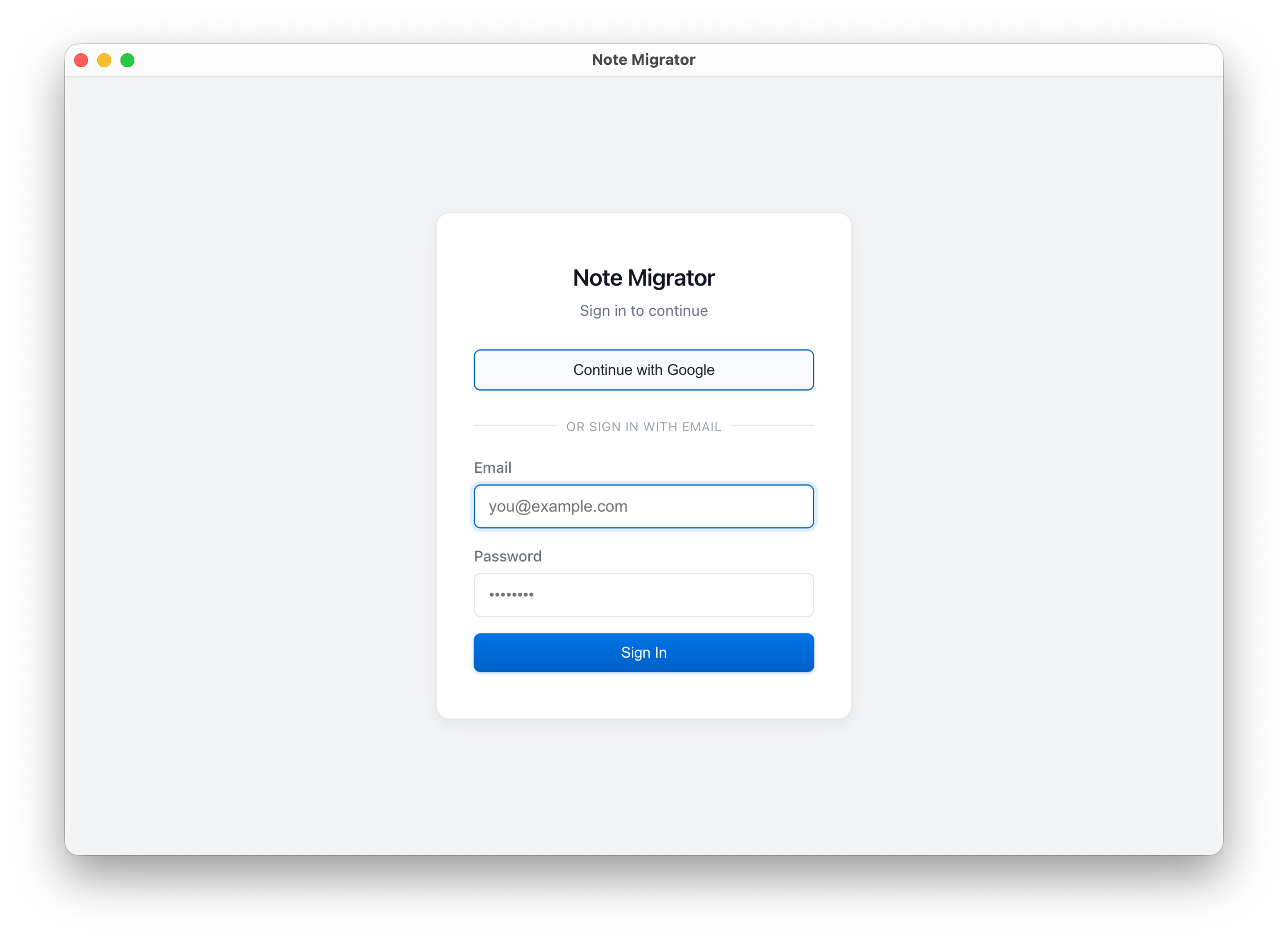
Step 1: Login to NoteMigrator
Start by logging into your NoteMigrator account. This ensures your settings and migration history are preserved.
Login to NoteMigrator
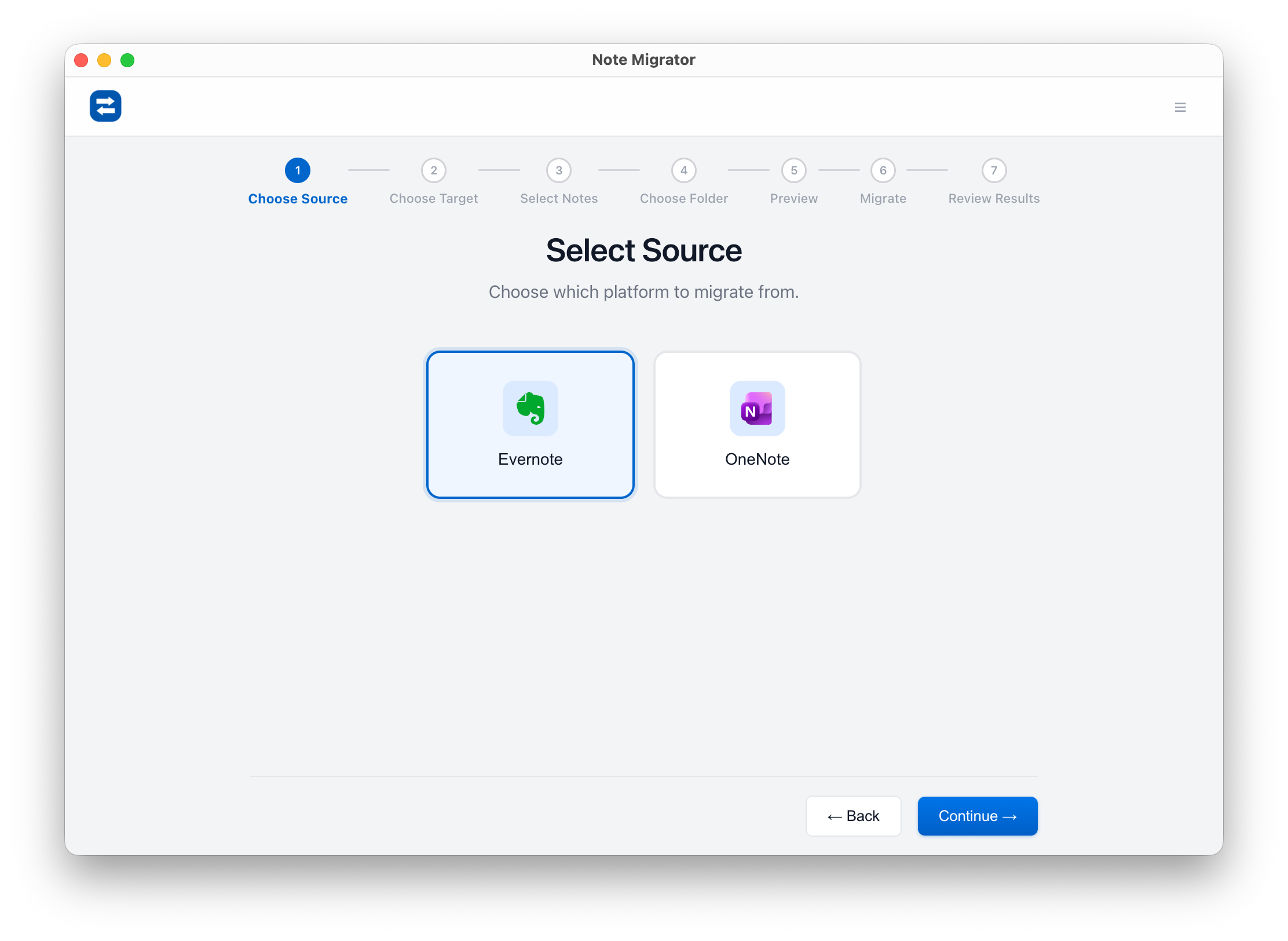
Step 2: Select Your Source
Choose Evernote as your source platform. NoteMigrator supports various versions and export formats to ensure maximum compatibility.
Select Source Platform
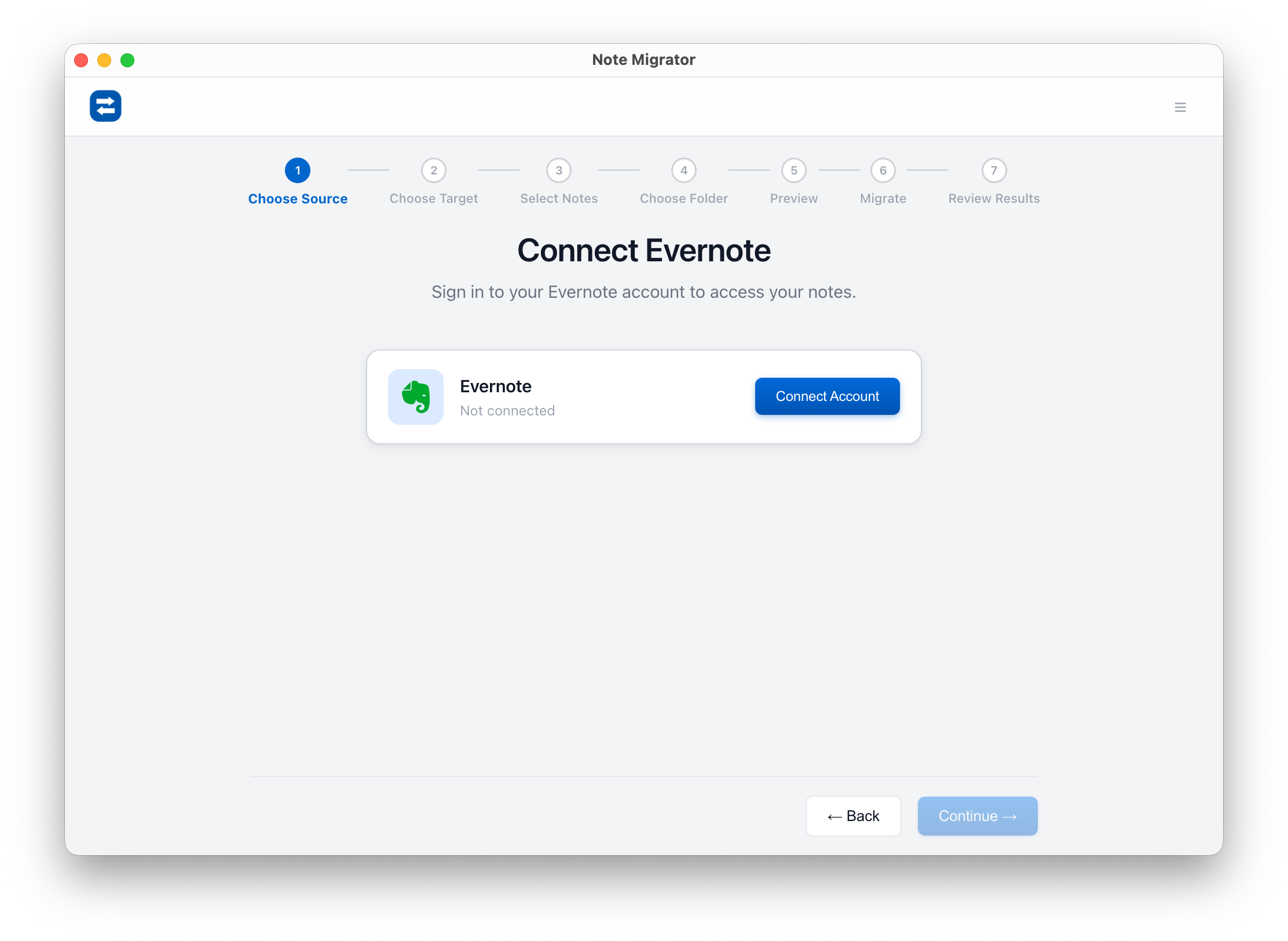
Step 3: Connect Evernote
Authorize NoteMigrator to access your Evernote account. We use secure OAuth protocols, meaning we never see or store your password. Your data remains private and secure throughout the process.
Connect Evernote
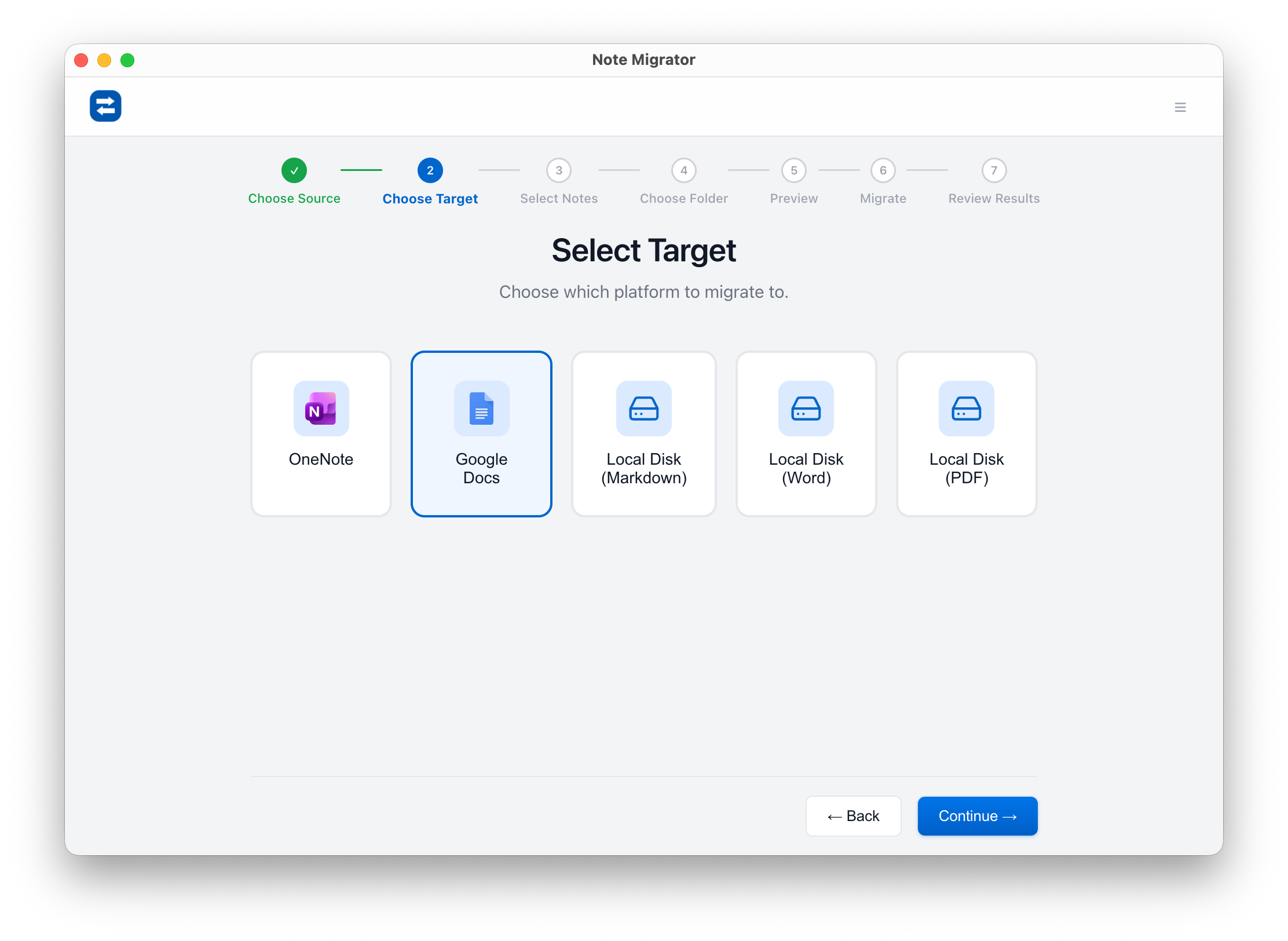
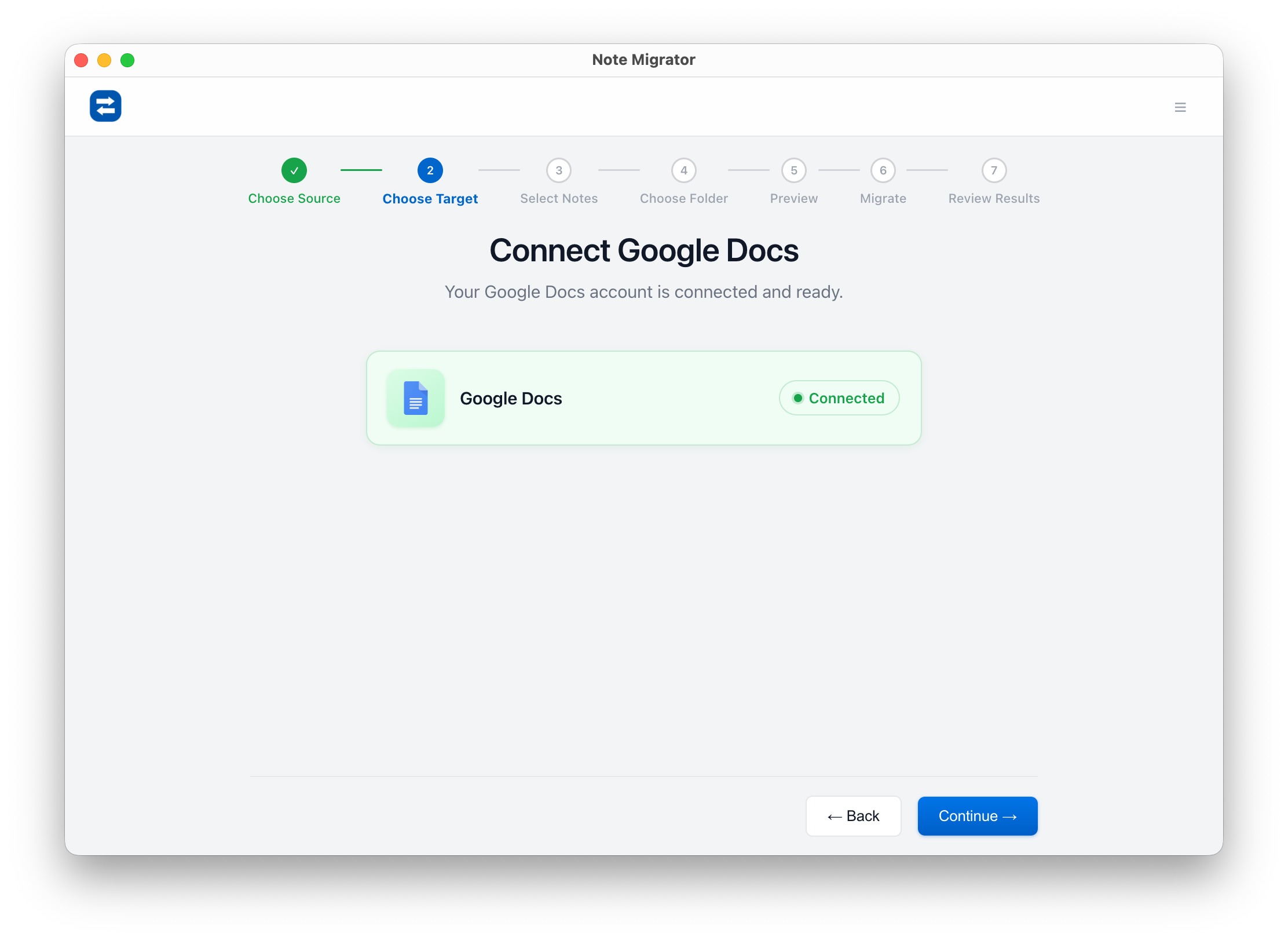
Step 4: Select Your Target
Now, select Google Docs (or Google Drive) as your destination.
Select Target Platform
Step 5: Connect Google Drive
Grant NoteMigrator permission to create documents in your Google Drive. You can choose specific folders or allow the app to create a new "Evernote Migration" root folder.
Connect Google Target
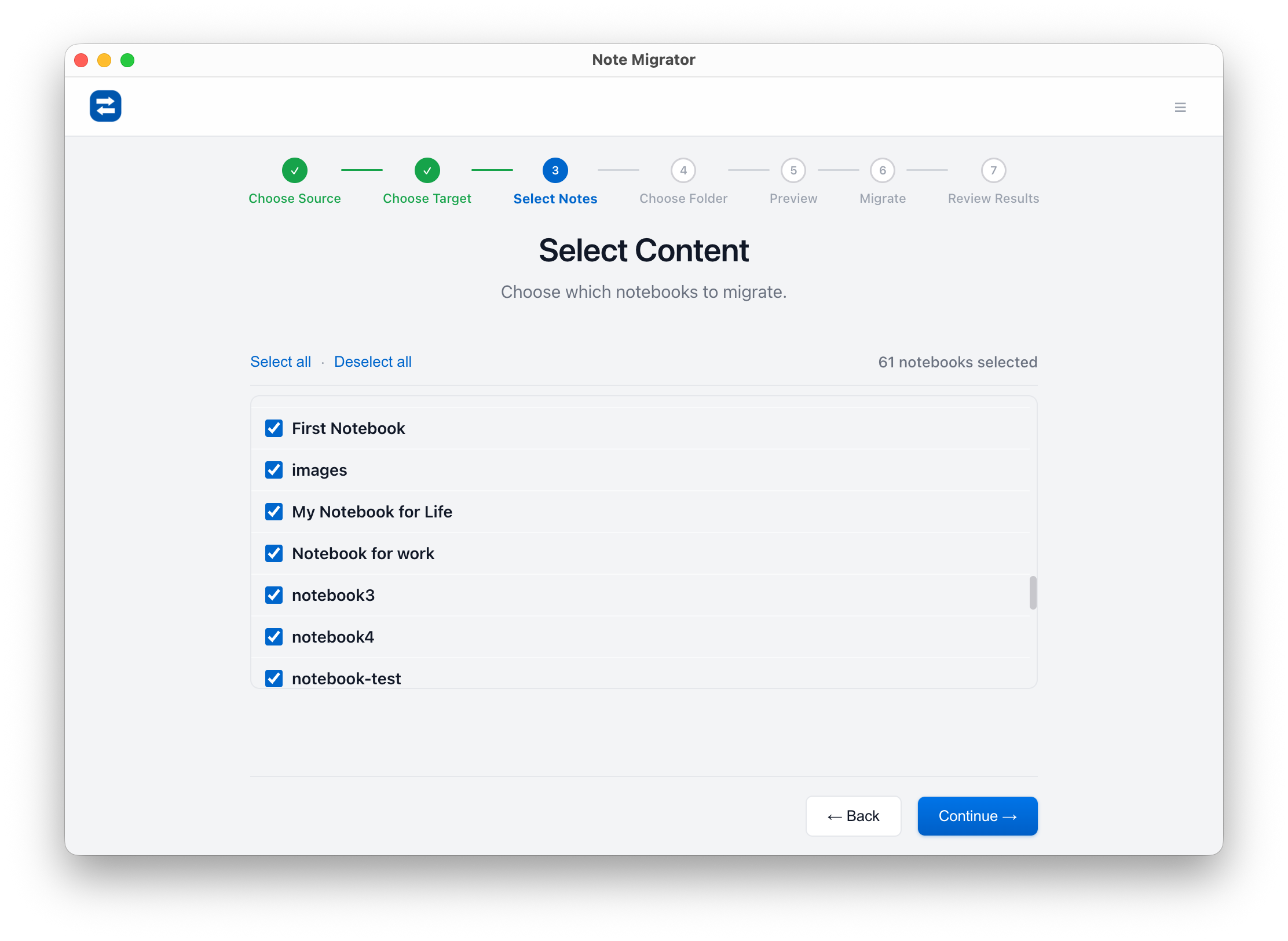
Step 6: Select Notebooks to Migrate
You don't have to move everything at once. Select specific notebooks or tags that you want to transfer. This is a great time to archive old notes you no longer need.
Select Source Notebooks
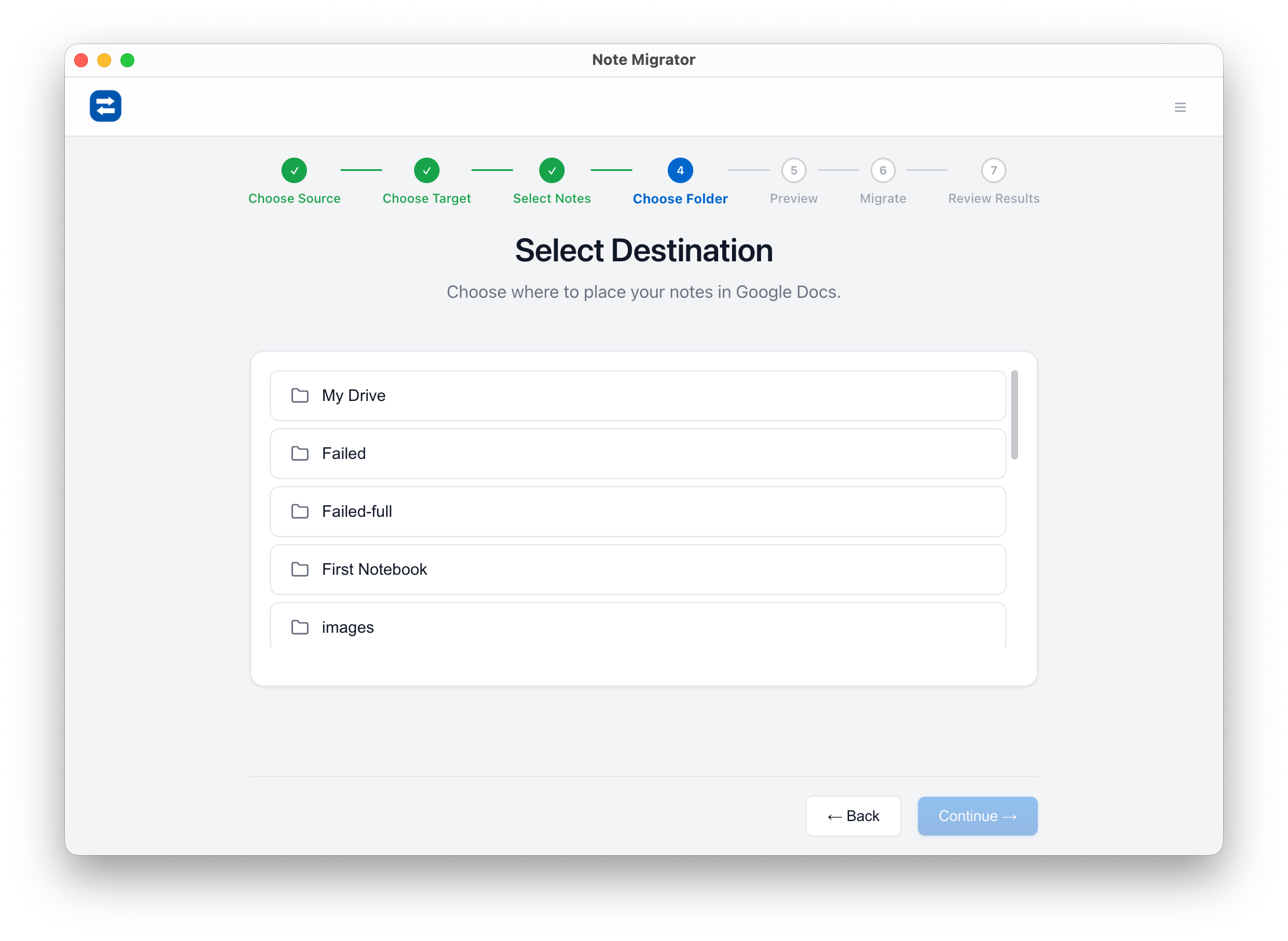
Step 7: Define the Destination Location
Choose exactly where in Google Drive your notes should land. NoteMigrator can recreate your Evernote notebook structure as a folder hierarchy in Drive.
Select Target Location
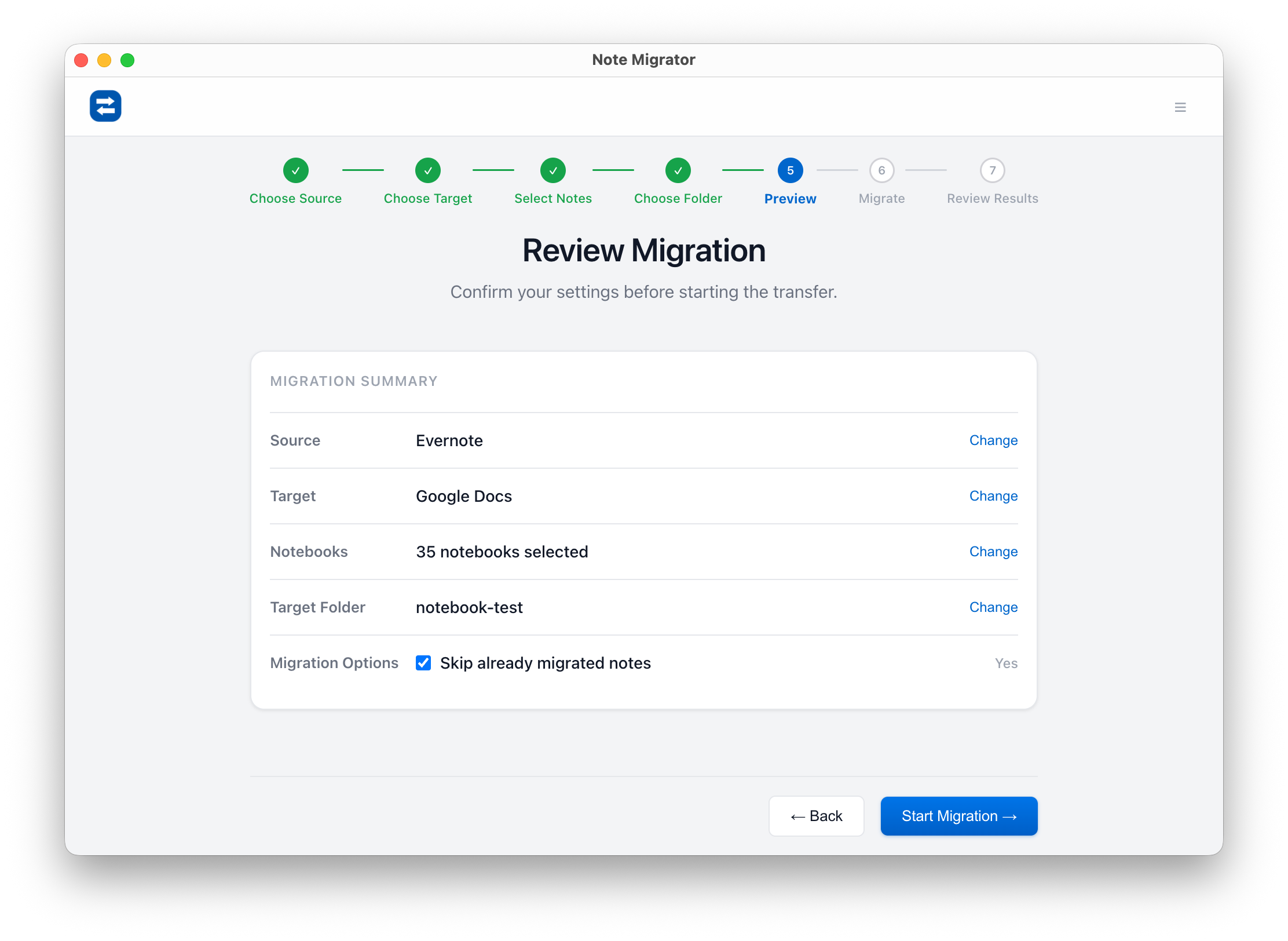
Step 8: Review Your Selections
Before starting the migration, review your source and target settings. Double-check the number of notes and the total size to ensure everything looks correct.
Review Selections
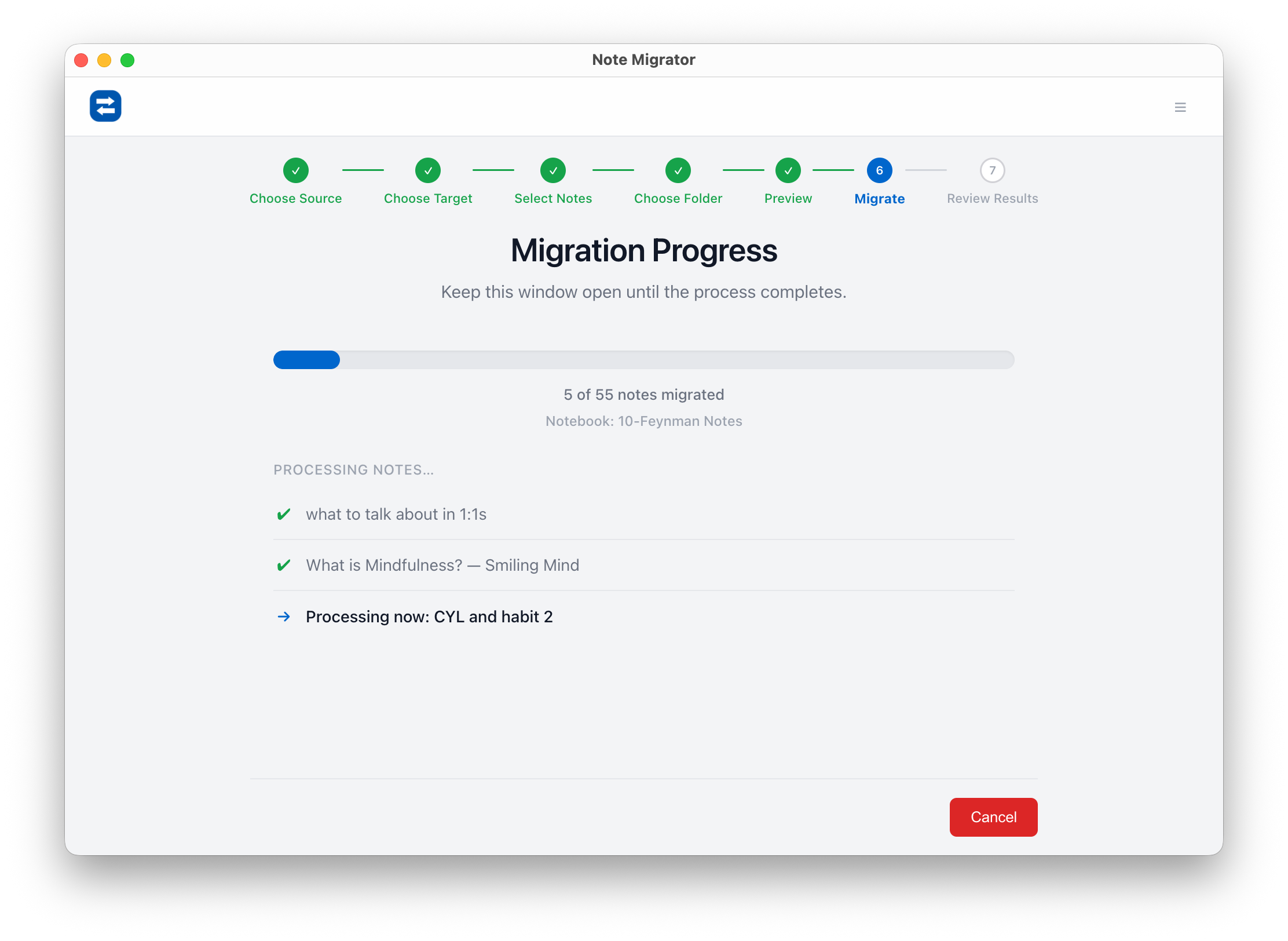
Step 9: Migration in Progress
Click "Start Migration" and let NoteMigrator handle the rest. You can track the progress in real-time. Our engine handles rate limits and API stability automatically, so you don't have to monitor the screen.
Migration Progress
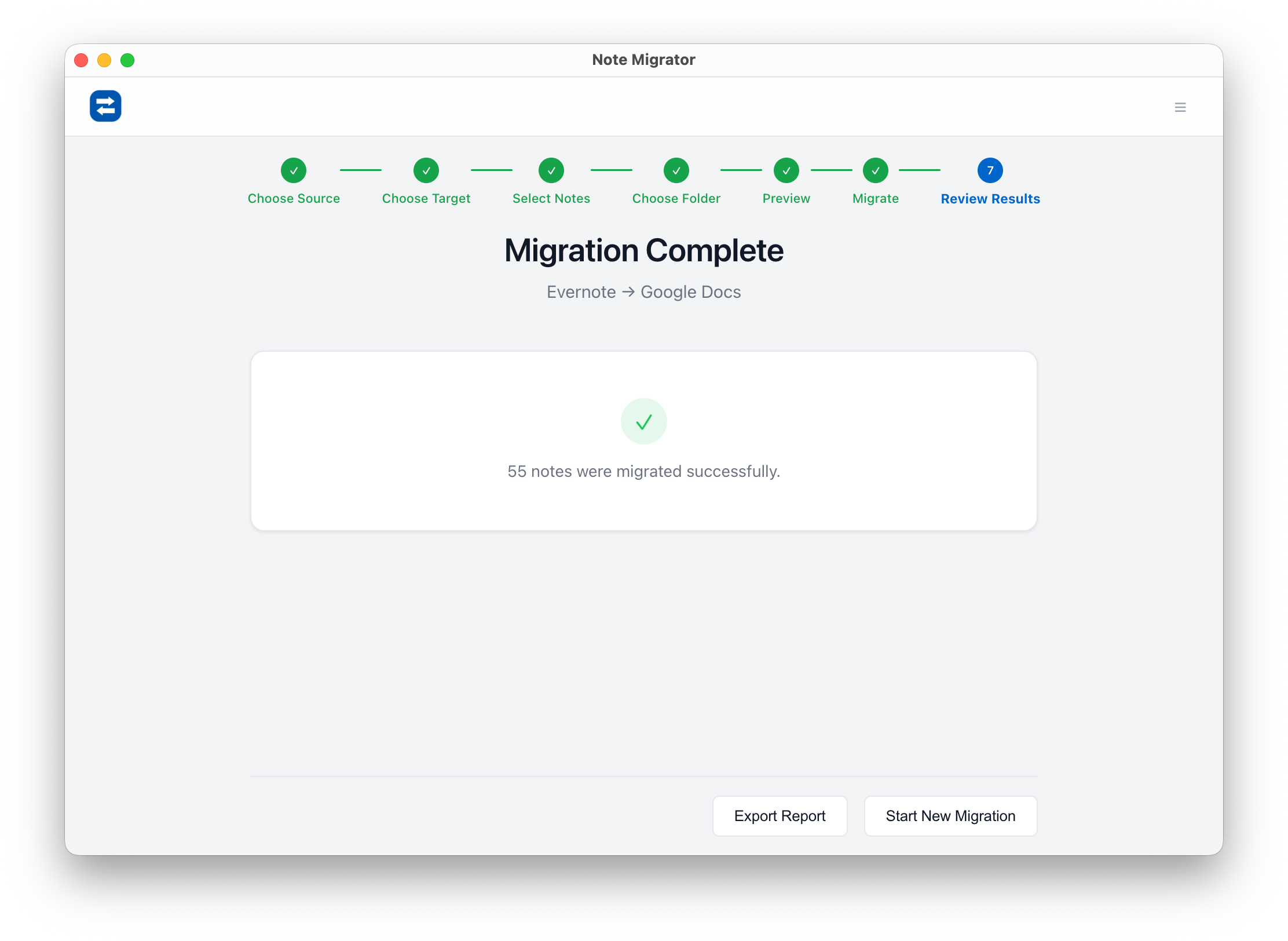
Step 10: Review the Results
Once complete, you'll receive a detailed summary. You can then head over to Google Drive to see your notes, now fully converted into Google Docs with formatting, images, and attachments intact.
Review Migration Result
Frequently Asked Questions
Will my images and attachments be preserved?
Yes! NoteMigrator extracts images and files from your Evernote notes and uploads them to Google Drive, then links them correctly within the generated Google Doc.
Can I migrate my tags?
Absolutely. NoteMigrator can convert Evernote tags into keywords at the top of your Google Docs or use them to organize files into specific folders.
Is my data safe during the migration?
NoteMigrator uses industry-standard encryption and official APIs. We never store your note content on our servers; the migration happens directly between the platforms or locally on your machine depending on your settings.
Ready to take control of your notes?
Don't let your valuable information stay locked in a platform that no longer fits your needs. With NoteMigrator, the path from Evernote to Google Docs is clear, safe, and incredibly fast.
We build NoteMigrator and document note-migration workflows, destination-specific constraints, and privacy tradeoffs so readers can plan migrations with fewer surprises.
Move your notes into Microsoft Word. Learn how to convert your Evernote notebooks into local DOCX files with all formatting, tables, and attachments preserved.
Archive your notes in a standard, universally readable format. Learn how to convert your Evernote notebooks into local PDF files with all formatting, layouts, and attachments preserved.